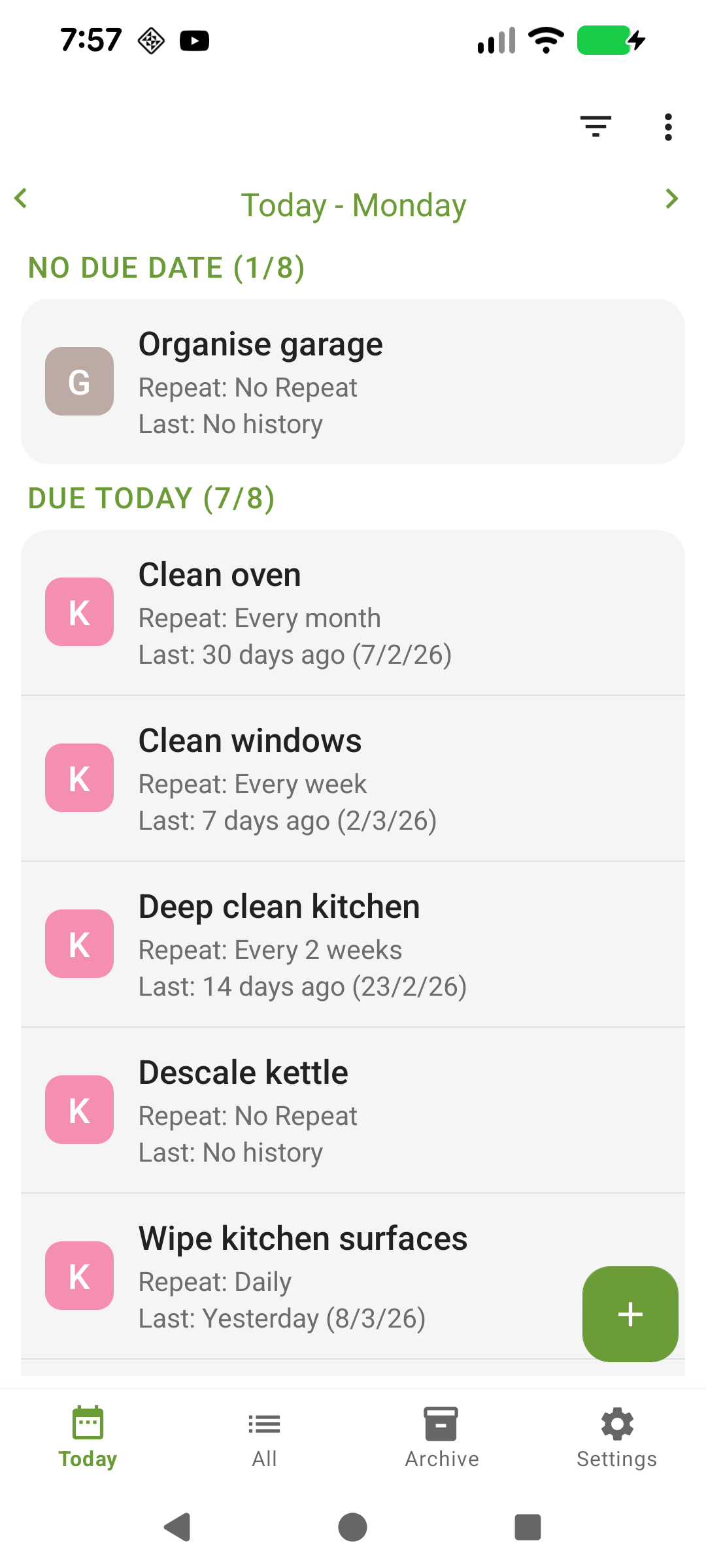
Clean My House is a task manager designed around repeating cleaning tasks and routines. When you open the app, you'll see the Today screen — this is your daily view showing everything that needs attention.
The app has four main screens, accessible from the bottom navigation bar:
Today — tasks due today, overdue tasks, and tasks with no due date
All Tasks — every active task in the app, with search
Archive — tasks you've finished or archived
Settings — preferences, backup, categories, and more
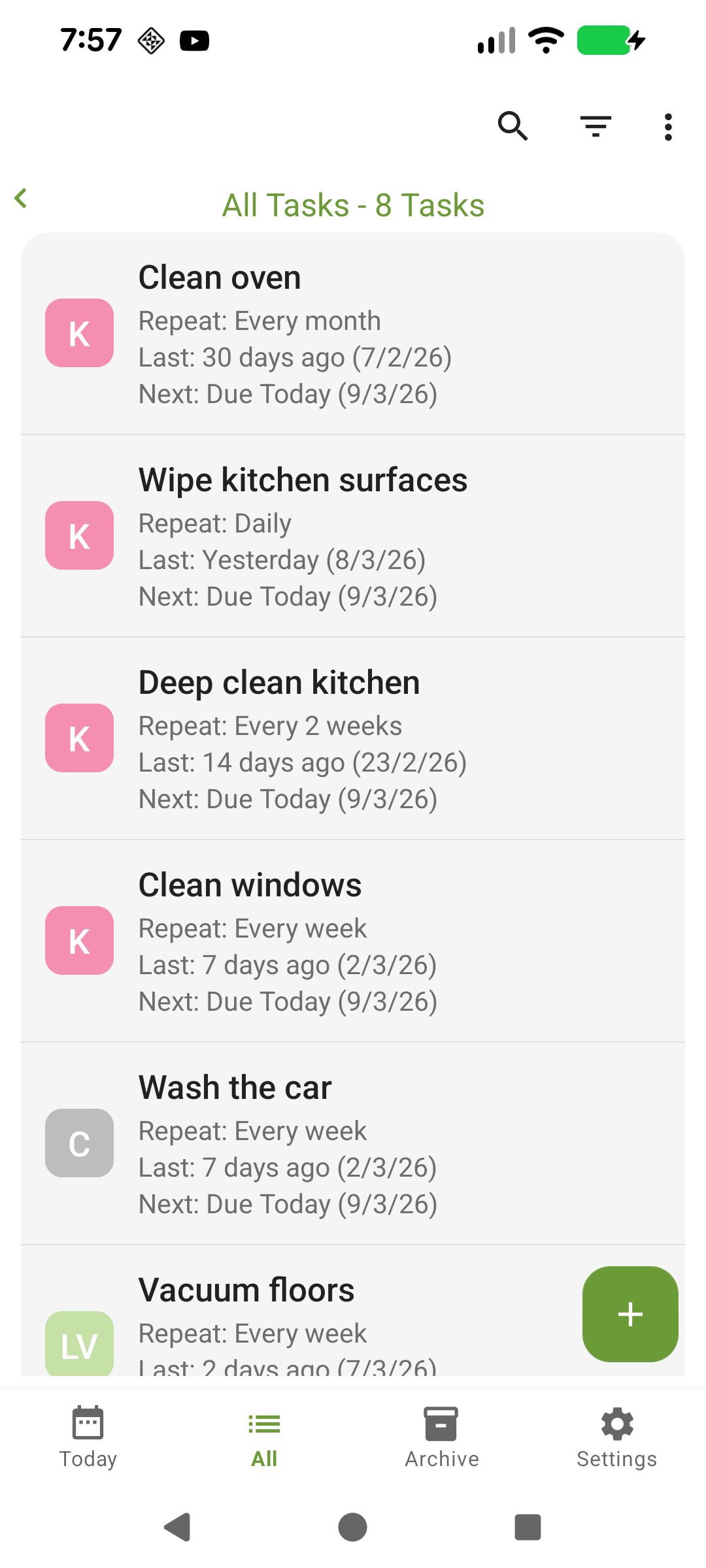
The All Tasks screen showing every active task.
You can also enable additional screens for Tomorrow, This Week, This Month, and Next Month in Settings (see Screens).
Creating a task
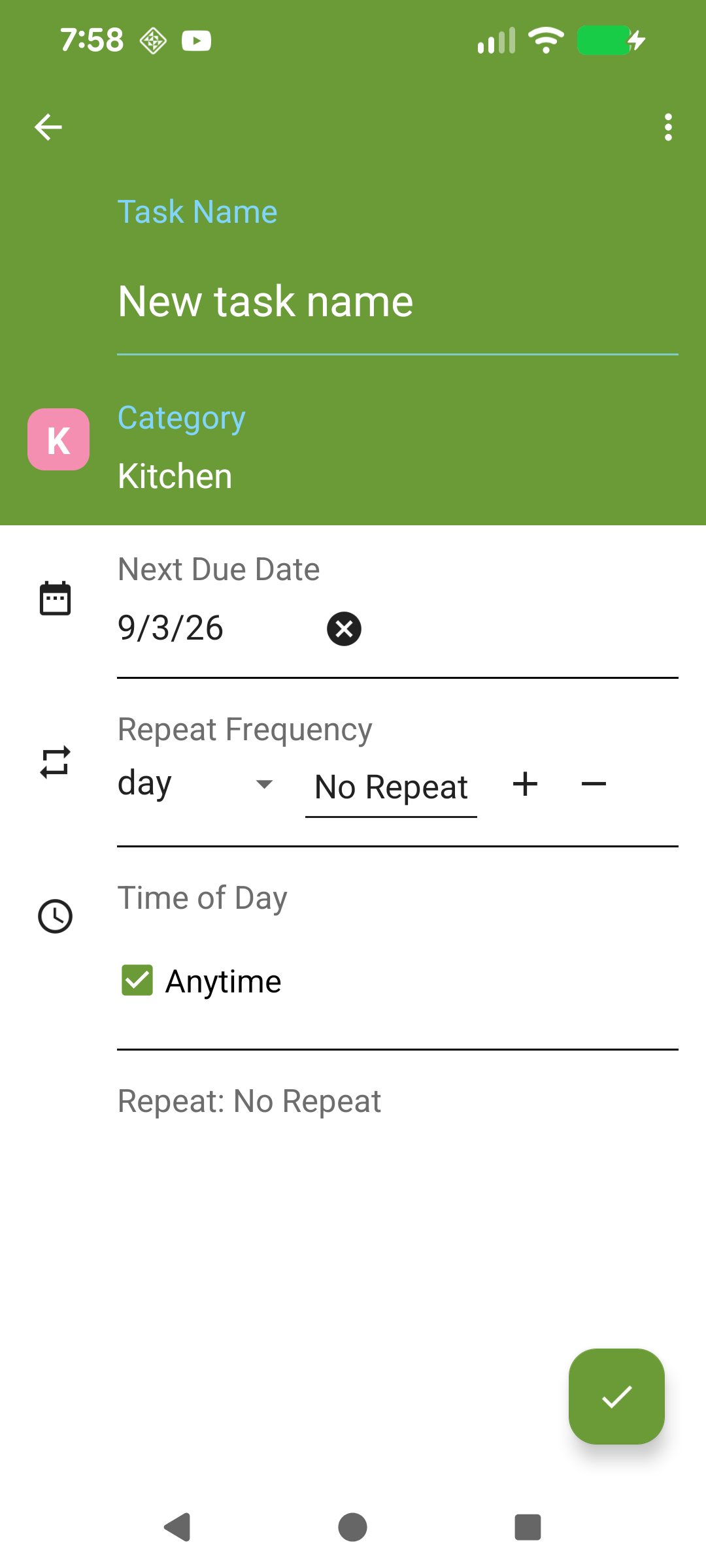
Tap the + button at the bottom of the screen. Give your task a name, choose a room/category, and set a due date if needed.
The Add Task screen.
You can also set how often the task repeats (daily, weekly, monthly, or yearly), and assign a time of day (morning, afternoon, or evening).
The Today screen showing your cleaning tasks for the day.
Erste Schritte
Clean My House ist ein Aufgabenmanager für wiederkehrende Reinigungsaufgaben und Routinen. Wenn Sie die App öffnen, sehen Sie den Heute-Bildschirm — Ihre Tagesübersicht mit allem, was erledigt werden muss.
Die App hat vier Hauptbildschirme, erreichbar über die untere Navigationsleiste:
Heute — heute fällige Aufgaben, überfällige Aufgaben und Aufgaben ohne Fälligkeitsdatum
Alle Aufgaben — jede aktive Aufgabe in der App, mit Suchfunktion
Archiv — erledigte oder archivierte Aufgaben
Einstellungen — Voreinstellungen, Sicherung, Kategorien und mehr
Der Alle-Aufgaben-Bildschirm mit allen aktiven Aufgaben.
Sie können in den Einstellungen auch zusätzliche Bildschirme für Morgen, Diese Woche, Diesen Monat und Nächsten Monat aktivieren (siehe Bildschirme).
Eine Aufgabe erstellen
Tippen Sie auf die +-Schaltfläche am unteren Bildschirmrand. Geben Sie der Aufgabe einen Namen, wählen Sie ein Zimmer/eine Kategorie und setzen Sie bei Bedarf ein Fälligkeitsdatum.
Der Bildschirm zum Hinzufügen einer Aufgabe.
Sie können auch einstellen, wie oft die Aufgabe wiederholt wird (täglich, wöchentlich, monatlich oder jährlich) und eine Tageszeit zuweisen (morgens, nachmittags oder abends).
Der Heute-Bildschirm mit Ihren Reinigungsaufgaben für den Tag.
This is the most important concept in Clean My House. There are two ways a repeating task can calculate its next due date:
Completion-based (rolling)
The next due date is calculated from the date you actually completed the task.
Example: "Clean the bathroom" repeats every 7 days. It was due on Monday 2nd March but you clean it on Wednesday 4th March (2 days late). The next due date will be Wednesday 11th March — 7 days from when you completed it, not from when it was originally due.
Scheduled (fixed)
The next due date is calculated from the original scheduled date, regardless of when you complete it.
Example: "Vacuum the lounge" is due every Monday. You complete it on Wednesday 4th March. The next due date is still Monday 9th March — the next scheduled Monday.
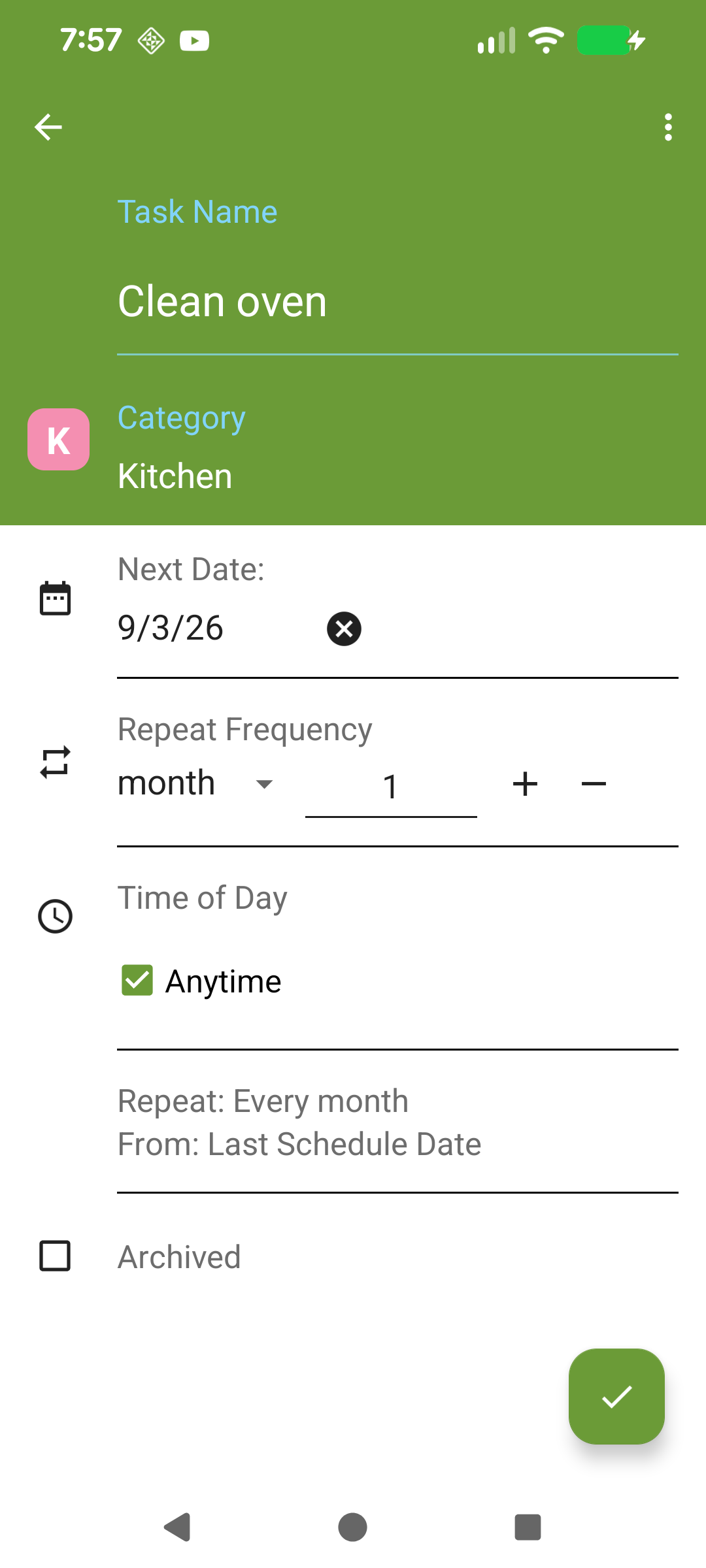
A monthly task set to Scheduled repeat.
One-off tasks
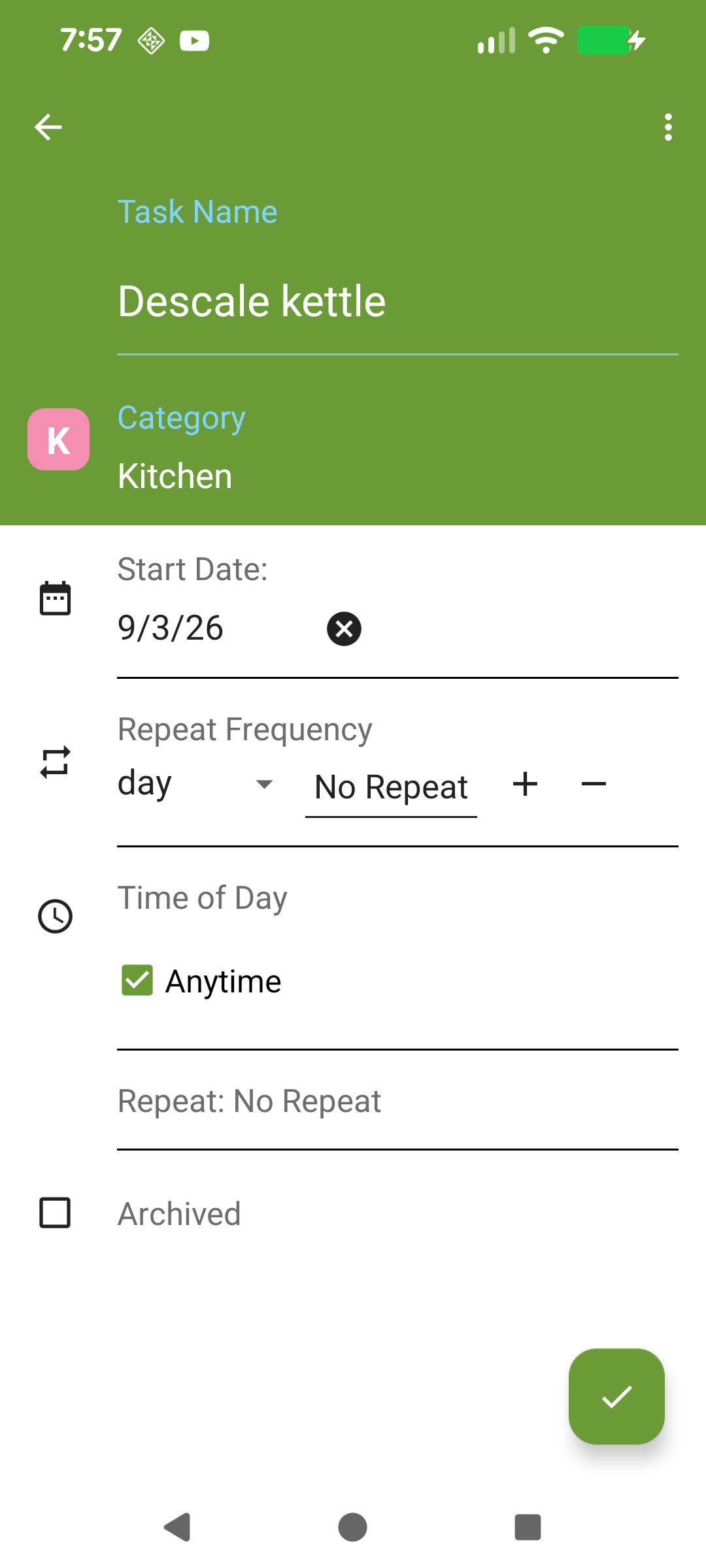
Tasks that don't repeat (repeat set to "No repeat") will only appear once. You can optionally set a due date for them.
A one-off task with a due date.
Defaults
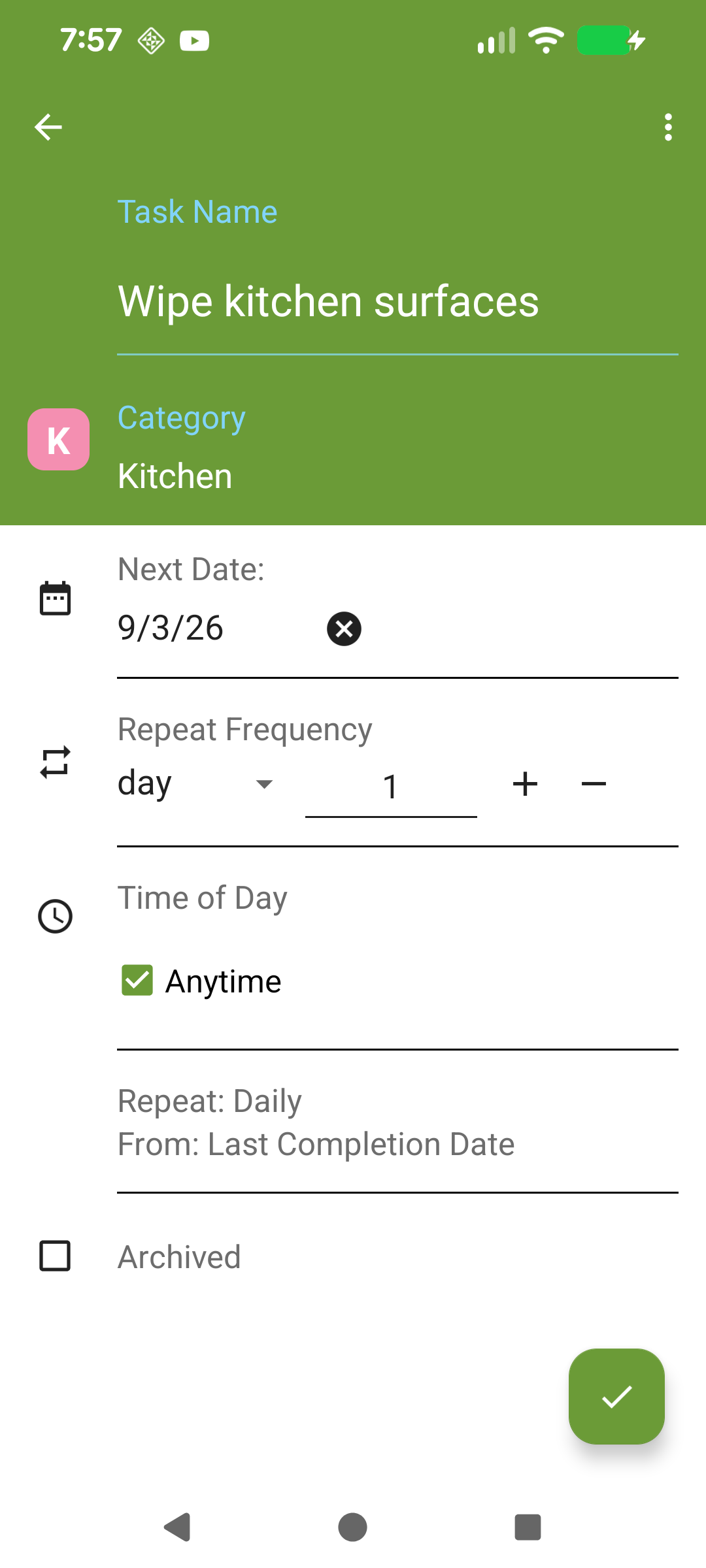
By default, daily tasks use Completion-based and weekly, monthly, and yearly tasks use Scheduled. You can change the defaults in Settings → Task Settings.
A daily task set to Completion-based repeat.
Wiederholungstypen verstehen
Dies ist das wichtigste Konzept in Clean My House. Es gibt zwei Arten, wie eine wiederkehrende Aufgabe ihr nächstes Fälligkeitsdatum berechnet:
Abschlussbasiert (rollierend)
Das nächste Fälligkeitsdatum wird ab dem Datum berechnet, an dem Sie die Aufgabe tatsächlich erledigt haben.
Beispiel: „Badezimmer putzen“ wiederholt sich alle 7 Tage. Fällig am Montag, 2. März, aber Sie putzen am Mittwoch, 4. März (2 Tage spät). Das nächste Fälligkeitsdatum ist Mittwoch, 11. März — 7 Tage ab Erledigung, nicht ab dem ursprünglichen Termin.
Geplant (fest)
Das nächste Fälligkeitsdatum wird vom ursprünglichen geplanten Datum berechnet, unabhängig davon, wann Sie die Aufgabe erledigen.
Beispiel: „Wohnzimmer staubsaugen“ ist jeden Montag fällig. Sie erledigen es am Mittwoch, 4. März. Das nächste Fälligkeitsdatum ist trotzdem Montag, 9. März — der nächste geplante Montag.
Eine monatliche Aufgabe mit geplanter Wiederholung.
Einmalige Aufgaben
Aufgaben ohne Wiederholung (Wiederholung auf „Keine Wiederholung“ gesetzt) erscheinen nur einmal. Sie können optional ein Fälligkeitsdatum festlegen.
Eine einmalige Aufgabe mit Fälligkeitsdatum.
Standardeinstellungen
Standardmäßig verwenden tägliche Aufgaben die abschlussbasierte und wöchentliche, monatliche und jährliche Aufgaben die geplante Wiederholung. Sie können die Standards unter Einstellungen → Aufgabeneinstellungen ändern.
Eine tägliche Aufgabe mit abschlussbasierter Wiederholung.
Weekly tasks have three modes depending on whether you select specific days of the week.
Weekly — no days selected
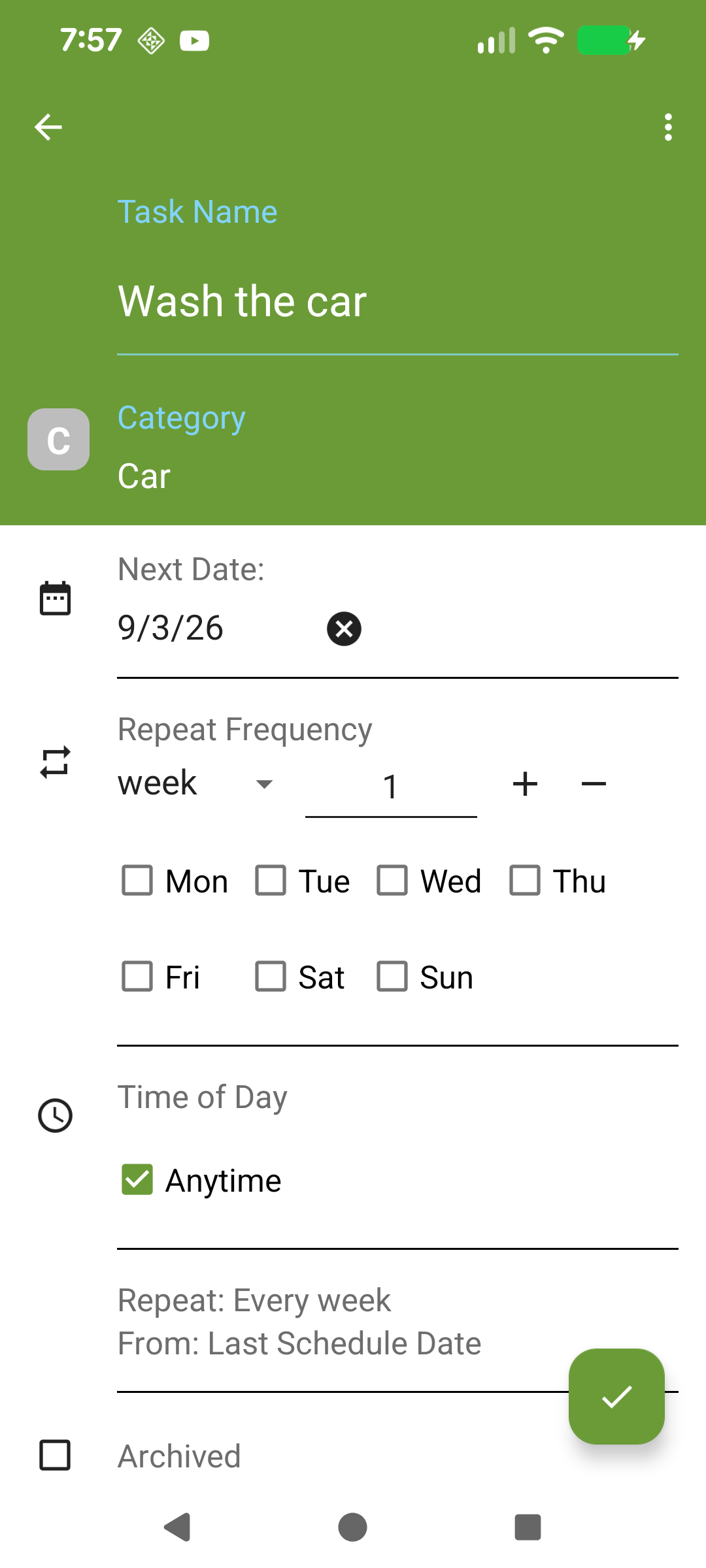
The task simply repeats every X weeks from its due date.
Example: "Mop the kitchen floor" due Monday 2nd March, repeat every 1 week:
Complete Mon 2nd March → next due Mon 9th March
Complete Mon 9th March → next due Mon 16th March
Weekly — one day selected
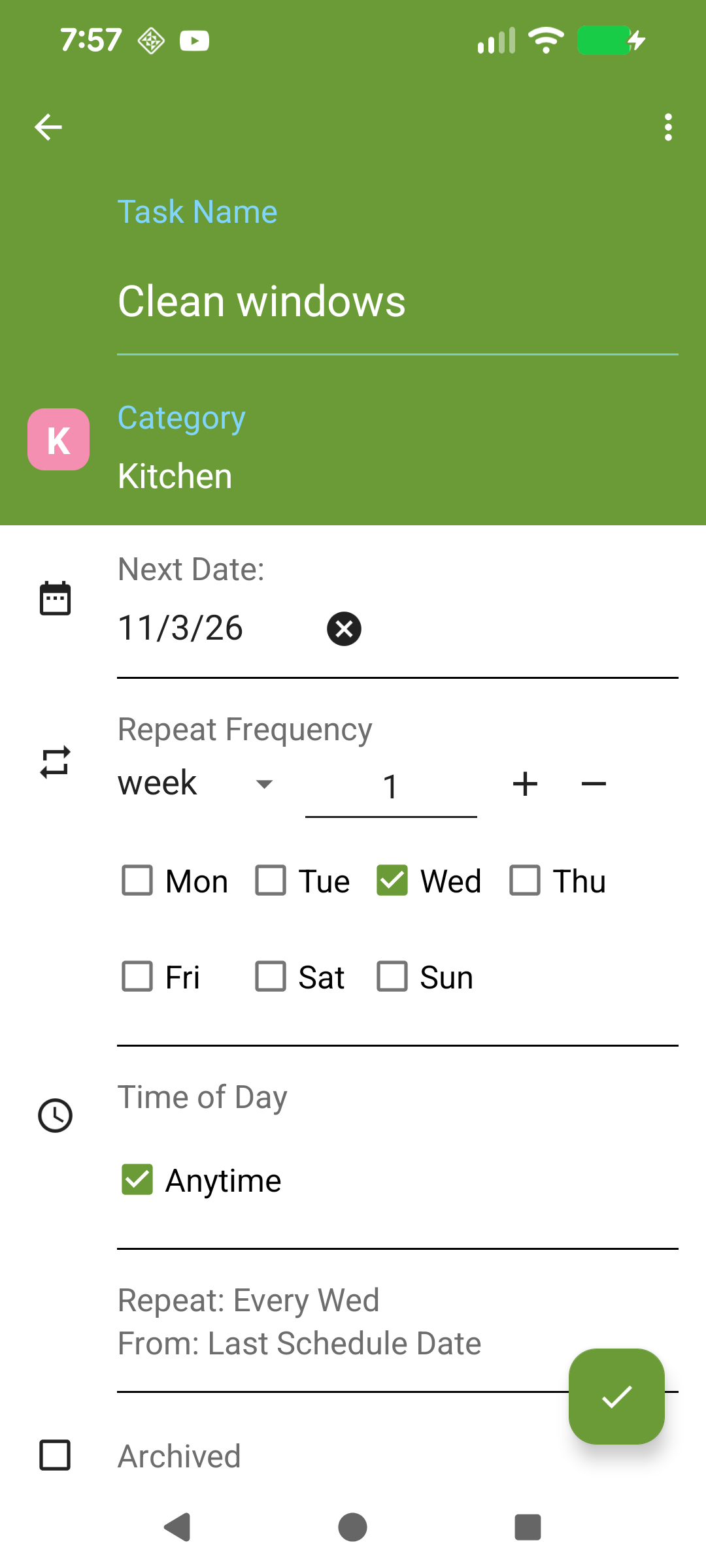
Works the same as above, but lets you pick which day of the week the task falls on.
Example: "Change bed sheets" repeats every 1 week on Wednesday, due Wed 4th March:
Complete Wed 4th March → next due Wed 11th March
Complete Wed 11th March → next due Wed 18th March
Weekly — multiple days selected
The task repeats multiple times within the same week. After completing one occurrence, the next due date jumps to the next selected day. When you've completed the last day in the week, it wraps around to the first day of the next cycle.
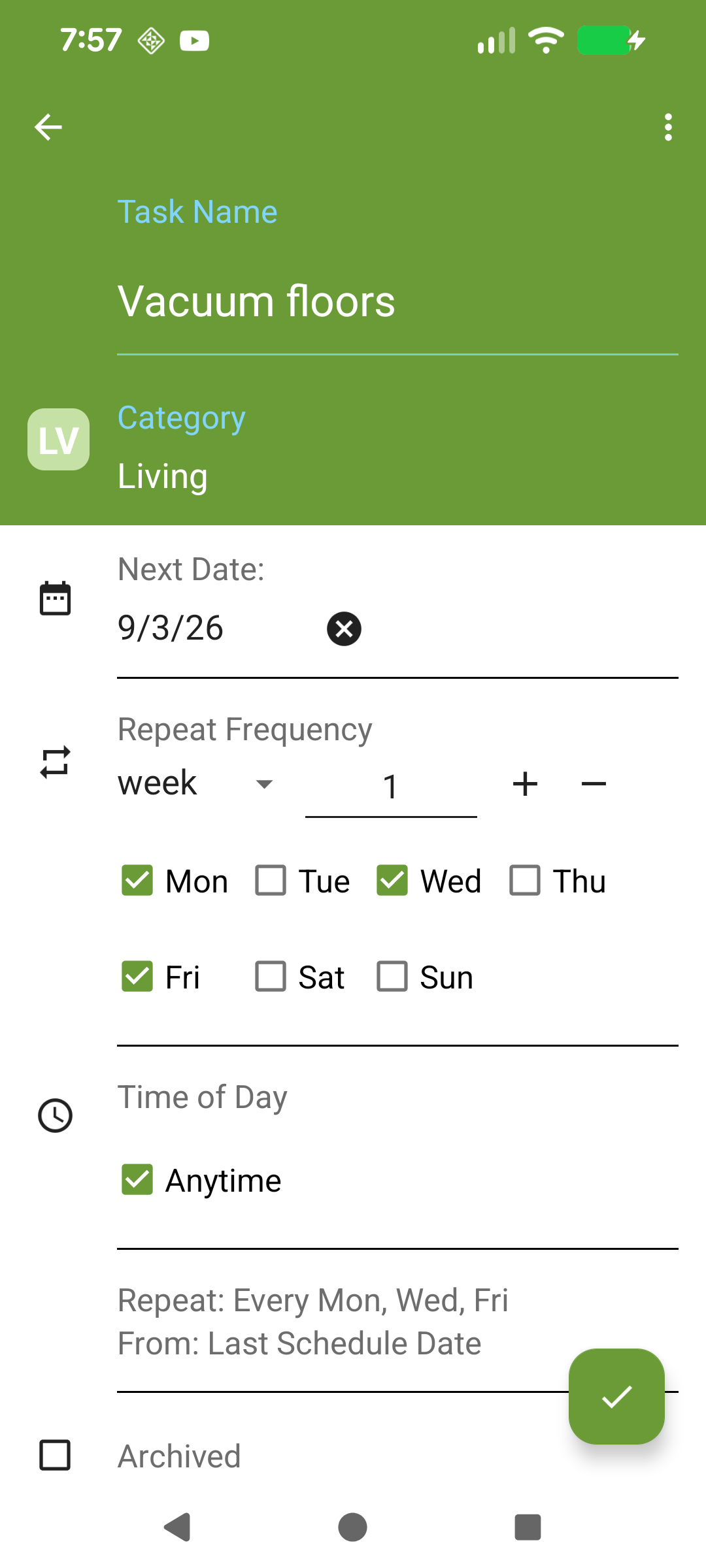
Example: "Vacuum floors" repeats every 1 week on Mon / Wed / Fri, starting Mon 2nd March:
Complete Mon 2nd March → next due Wed 4th March
Complete Wed 4th March → next due Fri 6th March
Complete Fri 6th March → next due Mon 9th March (wraps to next week)
Complete Mon 9th March → next due Wed 11th March
Every 2+ weeks — multiple days selected
Within the same week, days advance normally. But when wrapping from the last day to the next cycle, the multi-week gap is applied.
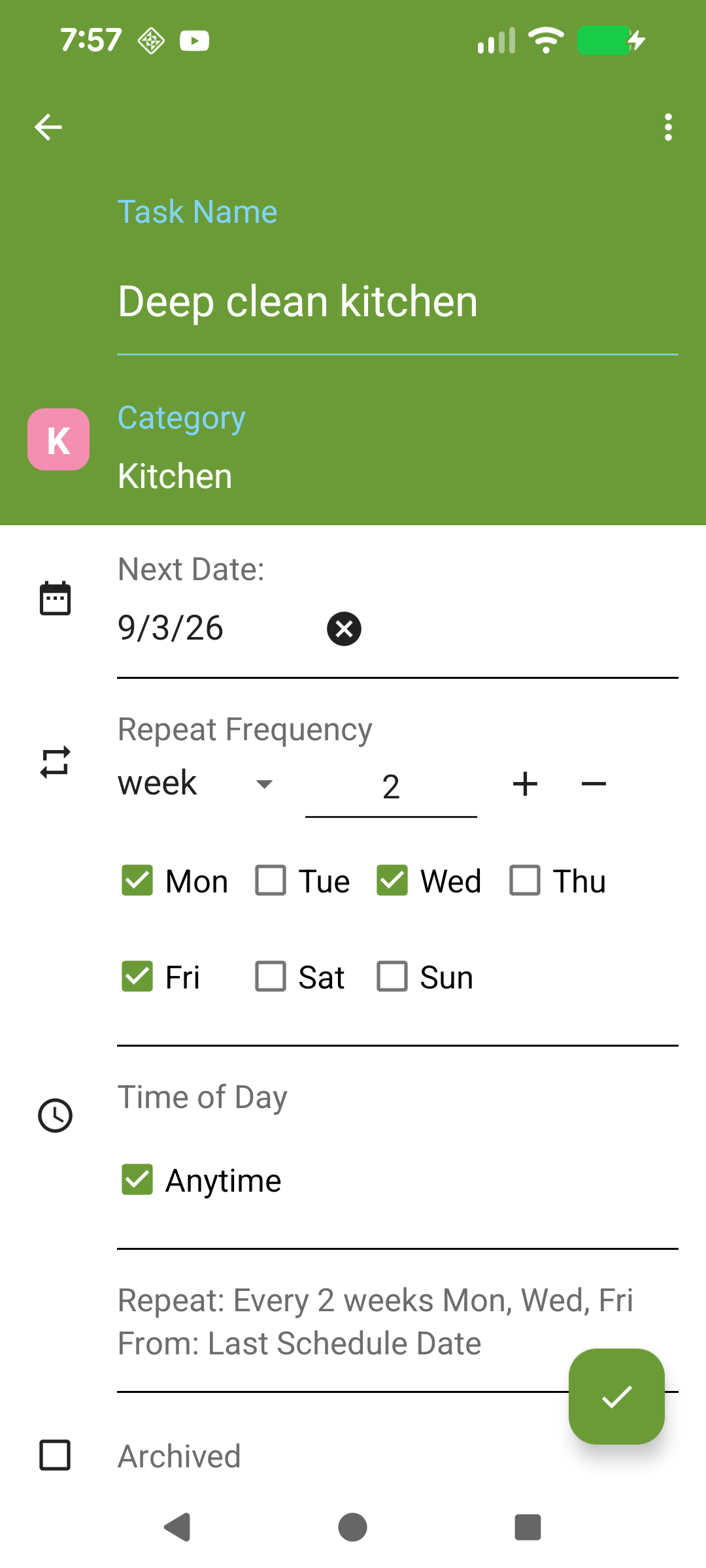
Example: "Deep clean kitchen" repeats every 2 weeks on Mon / Wed / Fri, starting Mon 2nd March:
Complete Mon 2nd March → next due Wed 4th March (same week)
Complete Wed 4th March → next due Fri 6th March (same week)
Complete Fri 6th March → next due Mon 16th March (skips a week)
Complete Mon 16th March → next due Wed 18th March (same week)
A weekly task with Mon, Wed, and Fri selected.
Wöchentliche Planung
Wöchentliche Aufgaben haben drei Modi, je nachdem ob Sie bestimmte Wochentage auswählen.
Wöchentlich — keine Tage ausgewählt
Die Aufgabe wiederholt sich einfach alle X Wochen ab ihrem Fälligkeitsdatum.
Funktioniert wie oben, aber Sie wählen den Wochentag aus.
Beispiel: „Bettwäsche wechseln“ wiederholt sich jede Woche am Mittwoch, fällig Mi 4. März:
Erledigt Mi 4. März → nächster Termin Mi 11. März
Erledigt Mi 11. März → nächster Termin Mi 18. März
Wöchentlich — mehrere Tage ausgewählt
Die Aufgabe wiederholt sich mehrmals pro Woche. Nach Erledigung springt das nächste Fälligkeitsdatum zum nächsten ausgewählten Tag. Nach dem letzten Tag der Woche springt es zum ersten Tag des nächsten Zyklus.
Beispiel: „Böden staubsaugen“ wiederholt sich jede Woche am Mo / Mi / Fr, Start Mo 2. März:
Erledigt Mo 2. März → nächster Termin Mi 4. März
Erledigt Mi 4. März → nächster Termin Fr 6. März
Erledigt Fr 6. März → nächster Termin Mo 9. März (springt zur nächsten Woche)
Erledigt Mo 9. März → nächster Termin Mi 11. März
Alle 2+ Wochen — mehrere Tage ausgewählt
Innerhalb derselben Woche rücken die Tage normal vor. Beim Sprung vom letzten Tag zum nächsten Zyklus wird der Mehrwochen-Abstand angewendet.
Beispiel: „Küche gründlich reinigen“ wiederholt sich alle 2 Wochen am Mo / Mi / Fr, Start Mo 2. März:
Erledigt Mo 2. März → nächster Termin Mi 4. März (gleiche Woche)
Erledigt Mi 4. März → nächster Termin Fr 6. März (gleiche Woche)
Erledigt Fr 6. März → nächster Termin Mo 16. März (überspringt eine Woche)
Erledigt Mo 16. März → nächster Termin Mi 18. März (gleiche Woche)
Eine wöchentliche Aufgabe mit Mo, Mi und Fr ausgewählt.
The Early Completion Threshold is a premium feature for Scheduled repeating tasks. It solves a common annoyance: completing a task a few days early and having the next due date come around too quickly.
Without this feature: if "Clean the oven" is due on the 15th and you complete it on the 12th, the next due date is still calculated from the 15th — so it will be due again on the 15th of next month, only 3 days later than if you'd waited.
With this feature enabled: if you complete within the threshold window, the task rolls forward as if you completed it on the due date.
You can customise the threshold for each frequency:
Weekly: 0–6 days early (default: 3 days)
Monthly: 0–27 days early (default: 7 days)
Yearly: 0–90 days early (default: 30 days)
Find this in Settings → Task Settings → Early Completion Threshold.
Frühzeitige Erledigung (Schwellenwert)
Der Schwellenwert für frühzeitige Erledigung ist eine Premium-Funktion für geplante wiederkehrende Aufgaben. Er löst ein häufiges Problem: Eine Aufgabe einige Tage früher erledigen und das nächste Fälligkeitsdatum kommt zu schnell.
Ohne diese Funktion: Wenn „Backofen reinigen“ am 15. fällig ist und Sie es am 12. erledigen, wird das nächste Fälligkeitsdatum trotzdem vom 15. berechnet — also ist es am 15. des nächsten Monats wieder fällig, nur 3 Tage später als wenn Sie gewartet hätten.
Mit dieser Funktion: Wenn Sie innerhalb des Schwellenwerts erledigen, wird die Aufgabe so weitergerechnet, als hätten Sie sie am Fälligkeitsdatum erledigt.
Sie können den Schwellenwert für jede Häufigkeit anpassen:
Wöchentlich: 0–6 Tage früher (Standard: 3 Tage)
Monatlich: 0–27 Tage früher (Standard: 7 Tage)
Jährlich: 0–90 Tage früher (Standard: 30 Tage)
Finden Sie dies unter Einstellungen → Aufgabeneinstellungen → Frühzeitige Erledigung.
The Behaviour section in Settings controls how tasks are displayed and how the app behaves. Go to Settings > Behaviour.
Behaviour
Auto Finish Tasks That Do Not Repeat — one-off tasks are automatically moved to the archive when completed.
First Day of the Week — choose which day the 'This Week' screen starts on.
Show Last Date — show or hide the last completed date on each task. Also affects the widget.
Overdue Tasks Appear in All Screens — when enabled, overdue tasks show on every screen, not just Today.
Start Timer — control whether the task timer starts automatically or waits for you to tap start.
Today Screen
One Tap Complete — complete a task with a single tap instead of opening the task first (premium).
Show Completed Tasks — keep completed tasks visible on the Today screen.
Section Order — drag and drop to choose the order of the No Due Date, Overdue, and Due Today sections on the Today screen. Completed tasks always appear at the bottom.
Repeat & Completion
Go to Settings > Behaviour > Repeat & Completion to control how repeating tasks calculate their next due date.
Daily / Weekly / Monthly / Yearly — choose whether tasks repeat from the Last Completion Date (rolling) or from the Last Scheduled Date (fixed). See Understanding Repeat Types for details.
Early Completion Threshold — for Scheduled tasks, controls how many days early you can complete a task before the due date advances. See Early Completion Threshold.
Verhaltenseinstellungen
Der Bereich Verhalten in den Einstellungen steuert, wie Aufgaben angezeigt werden und wie sich die App verhält. Gehen Sie zu Einstellungen > Verhalten.
Verhalten
Nicht wiederholende Aufgaben automatisch archivieren — einmalige Aufgaben werden nach Erledigung automatisch ins Archiv verschoben.
Erster Tag der Woche — wählen Sie, an welchem Tag der Bildschirm 'Diese Woche' beginnt.
Letztes Datum anzeigen — zeigt oder verbirgt das letzte Erledigungsdatum bei jeder Aufgabe.
Überfällige Aufgaben auf allen Bildschirmen — überfällige Aufgaben werden auf allen Bildschirmen angezeigt.
Timer starten — steuert, ob der Timer automatisch startet oder auf Ihr Antippen wartet.
Heute-Bildschirm
Ein-Tipp-Erledigung — Aufgabe mit einem Tipp erledigen (Premium).
Erledigte Aufgaben anzeigen — erledigte Aufgaben auf dem Heute-Bildschirm sichtbar halten.
Abschnittsreihenfolge — per Drag-and-Drop die Reihenfolge der Abschnitte auf dem Heute-Bildschirm festlegen.
Wiederholung & Abschluss
Gehen Sie zu Einstellungen > Verhalten > Wiederholung & Abschluss, um zu steuern, wie wiederkehrende Aufgaben ihr nächstes Fälligkeitsdatum berechnen.
Täglich / Wöchentlich / Monatlich / Jährlich — wählen Sie, ob Aufgaben ab dem letzten Erledigungsdatum oder ab dem letzten geplanten Datum wiederholt werden.
Schwellenwert für vorzeitige Erledigung — für geplante Aufgaben: steuert, wie viele Tage im Voraus Sie eine Aufgabe erledigen können, bevor das Fälligkeitsdatum vorverlegt wird.
In addition to the main Today, All Tasks, and Archive screens, you can enable extra screens that show tasks for different time periods. Go to Settings → Screens to toggle each one on or off:
Tomorrow — shows tasks due tomorrow
This Week — shows tasks due within the current week (the start day is configurable in Behaviour settings)
This Month — shows tasks due within the current month
Next Month — shows tasks due next month
Enabled screens appear as tabs in the app. Disabling a screen simply hides the tab — your tasks are not affected.
Bildschirme
Zusätzlich zu den Hauptbildschirmen Heute, Alle Aufgaben und Archiv können Sie weitere Bildschirme für verschiedene Zeiträume aktivieren. Gehen Sie zu Einstellungen → Bildschirme, um sie ein- oder auszuschalten:
Morgen — zeigt morgen fällige Aufgaben
Diese Woche — zeigt diese Woche fällige Aufgaben (der Starttag ist in den Verhaltenseinstellungen konfigurierbar)
Diesen Monat — zeigt diesen Monat fällige Aufgaben
Nächsten Monat — zeigt nächsten Monat fällige Aufgaben
Aktivierte Bildschirme erscheinen als Tabs in der App. Das Deaktivieren eines Bildschirms blendet nur den Tab aus — Ihre Aufgaben sind nicht betroffen.
The Features section in Settings lets you show or hide optional features. This helps keep the app simple if you don't need everything.
Show Suggestion List
Toggle the Master Task List (suggestion list) on or off. When enabled, you can add pre-defined cleaning task templates from the + menu. See Master Task List for details.
Multi-Select Tasks
When enabled, you can long-press to select multiple tasks at once and perform bulk actions such as completing, archiving, or deleting them. This is a premium feature.
Show Category Filter
When enabled, a category filter button appears on the task list screens, allowing you to filter tasks by room. This is a premium feature.
Funktionen
Der Bereich Funktionen in den Einstellungen lässt Sie optionale Funktionen ein- oder ausblenden. Das hält die App einfach, wenn Sie nicht alles benötigen.
Vorschlagsliste anzeigen
Schalten Sie die Master-Aufgabenliste (Vorschlagsliste) ein oder aus. Wenn aktiviert, können Sie vordefinierte Reinigungsvorlagen aus dem +-Menü hinzufügen. Siehe Master-Aufgabenliste für Details.
Mehrfachauswahl
Wenn aktiviert, können Sie durch langes Drücken mehrere Aufgaben auswählen und Massenaktionen wie Erledigen, Archivieren oder Löschen durchführen. Dies ist eine Premium-Funktion.
Kategoriefilter anzeigen
Wenn aktiviert, erscheint eine Filterschaltfläche auf den Aufgabenlisten, mit der Sie Aufgaben nach Zimmer filtern können. Dies ist eine Premium-Funktion.
Categories represent the rooms and areas of your home. Each room has a name and a colour that appears as a circle next to your tasks.
Managing rooms
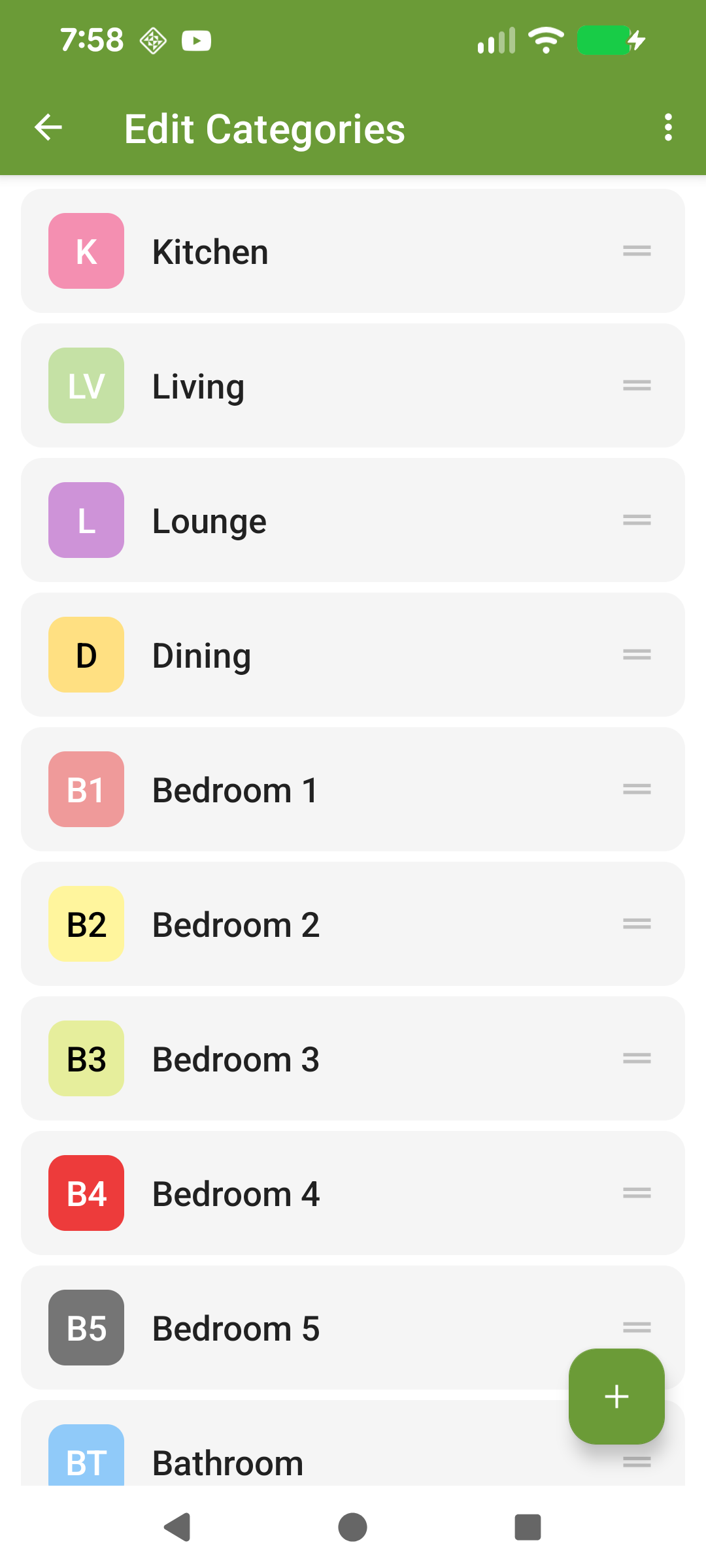
Go to Settings → Edit Categories. From there you can add, edit, rename, reorder, or delete rooms. The app comes with common rooms pre-configured (Kitchen, Bathroom, Bedroom, Garden, etc.).
Assigning rooms
When creating or editing a task, tap the coloured circle or room name to choose which room the task belongs to.
Filtering by room
You can filter your task list to show only specific rooms using the category filter (premium feature). Enable it in Features.
The Categories screen showing colour-coded rooms.
Kategorien (Zimmer)
Kategorien repräsentieren die Zimmer und Bereiche Ihres Zuhauses. Jedes Zimmer hat einen Namen und eine Farbe, die als Kreis neben Ihren Aufgaben erscheint.
Zimmer verwalten
Gehen Sie zu Einstellungen → Kategorien bearbeiten. Dort können Sie Zimmer hinzufügen, bearbeiten, umbenennen, neu ordnen oder löschen. Die App kommt mit gängigen Zimmern vorkonfiguriert (Küche, Badezimmer, Schlafzimmer, Garten usw.).
Zimmer zuweisen
Beim Erstellen oder Bearbeiten einer Aufgabe tippen Sie auf den farbigen Kreis oder Zimmernamen, um das Zimmer der Aufgabe auszuwählen.
Nach Zimmer filtern
Sie können Ihre Aufgabenliste filtern, um nur bestimmte Zimmer anzuzeigen, mit dem Kategoriefilter (Premium-Funktion). Aktivieren Sie ihn unter Funktionen.
Der Kategorien-Bildschirm mit farbcodierten Zimmern.
The Master Task List is a library of cleaning task templates that you can quickly add to your active task list. Think of it as a menu of pre-defined cleaning tasks.
This is useful for tasks you only need occasionally. For example, seasonal tasks like "clean the gutters" or "wash the windows" can live in the master list until you need them.
Adding from the master list
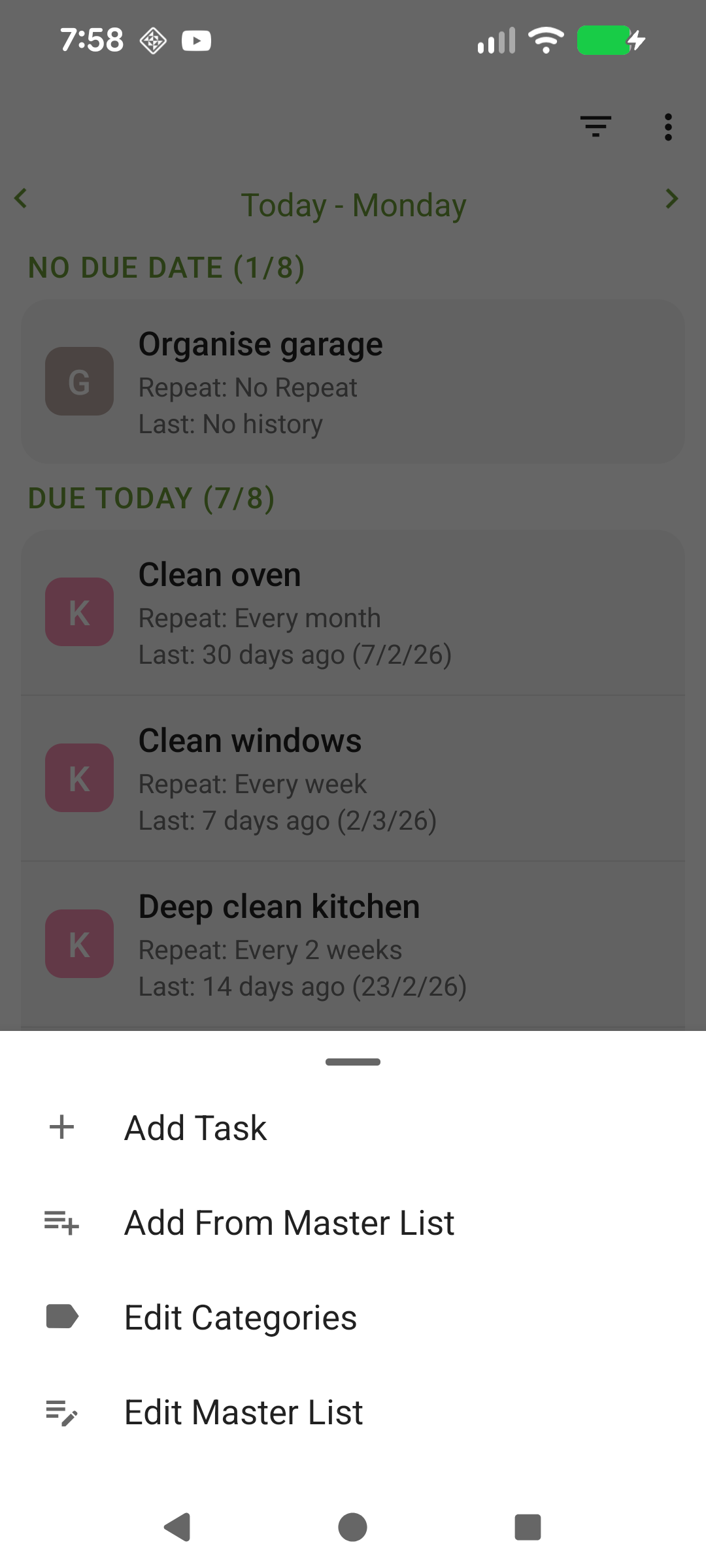
Tap the + button and choose Add from Master List. Select the task you want to add and it will be created with the template settings.
Managing the master list
You can add, edit, and delete master task templates from the master list screen (premium feature for editing).
The add menu showing the option to add from the Master List.
Master-Aufgabenliste
Die Master-Aufgabenliste ist eine Bibliothek von Reinigungsvorlagen, die Sie schnell zu Ihrer aktiven Aufgabenliste hinzufügen können. Stellen Sie sich ein Menü mit vordefinierten Reinigungsaufgaben vor.
Dies ist nützlich für Aufgaben, die Sie nur gelegentlich benötigen. Zum Beispiel können saisonale Aufgaben wie „Dachrinnen reinigen“ oder „Fenster putzen“ in der Master-Liste bleiben, bis Sie sie brauchen.
Aus der Master-Liste hinzufügen
Tippen Sie auf die +-Schaltfläche und wählen Sie Aus Master-Liste hinzufügen. Wählen Sie die gewünschte Aufgabe aus und sie wird mit den Vorlageneinstellungen erstellt.
Master-Liste verwalten
Sie können Master-Vorlagen hinzufügen, bearbeiten und löschen (Bearbeiten ist eine Premium-Funktion).
Das Hinzufügen-Menü mit der Option, aus der Master-Liste hinzuzufügen.
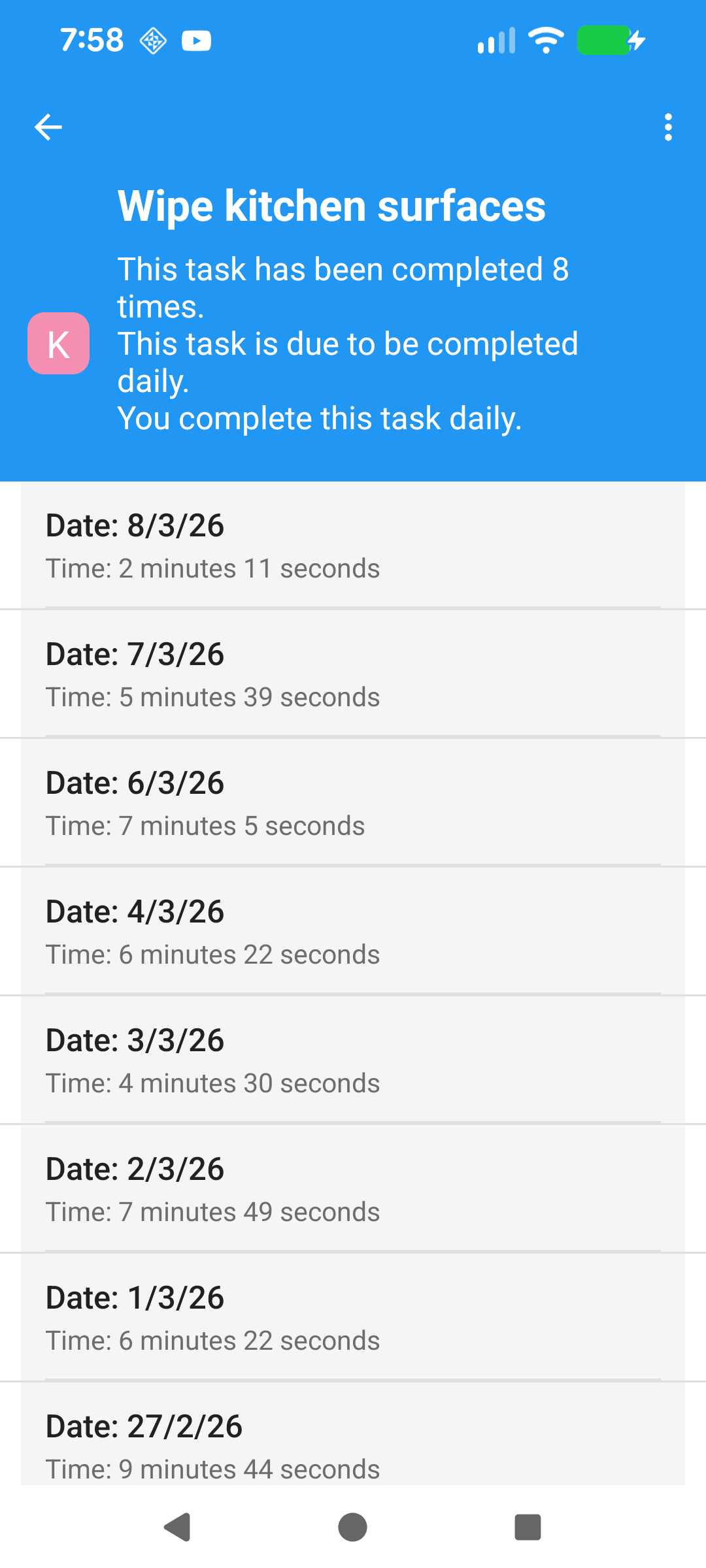
Every time you complete a cleaning task, a record is saved in the task's history.
Viewing history
Open the task menu (long-press or tap the menu icon) and select View History. The history screen shows all past completions with dates, time spent, and any notes.
Statistics
At the top of the history screen you'll see the total number of completions and the average number of days between completions.
Editing history
Tap on any history entry to change the completion date or add a note. You can also delete individual entries or clear the entire history.
Task history showing past completions and statistics.
Aufgabenverlauf
Jedes Mal, wenn Sie eine Reinigungsaufgabe erledigen, wird ein Eintrag im Verlauf der Aufgabe gespeichert.
Verlauf anzeigen
Öffnen Sie das Aufgabenmenü (langes Drücken oder Menüsymbol antippen) und wählen Sie Verlauf anzeigen. Der Verlaufsbildschirm zeigt alle vergangenen Erledigungen mit Datum, aufgewendeter Zeit und Notizen.
Statistiken
Am oberen Rand des Verlaufsbildschirms sehen Sie die Gesamtzahl der Erledigungen und die durchschnittliche Anzahl der Tage zwischen den Erledigungen.
Verlauf bearbeiten
Tippen Sie auf einen Verlaufseintrag, um das Erledigungsdatum zu ändern oder eine Notiz hinzuzufügen. Sie können auch einzelne Einträge löschen oder den gesamten Verlauf leeren.
Aufgabenverlauf mit vergangenen Erledigungen und Statistiken.
Clean My House can send you a daily notification to remind you to check your cleaning tasks.
Enabling the reminder
Go to Settings → Daily Reminder and turn it on. You will also need to allow notifications in your phone's app settings (Android 13 and above will prompt you for permission).
Reminder Time
Set what time the daily reminder appears. Choose a time that fits your routine — for example, first thing in the morning or after work.
Reminder Type
There are two notification styles:
Dismiss by swipe — a standard notification that you can swipe away
Dismiss by button — a persistent notification that stays until you tap the dismiss button. This is useful if you tend to accidentally swipe away reminders
Notification not appearing?
If the reminder is not working, check the following:
Open your phone's Settings → Apps → Clean My House → Notifications and make sure notifications are allowed
Check that Battery Optimisation is not killing the app in the background. Many Android manufacturers have aggressive battery saving — exclude Clean My House from optimisation
Check that Do Not Disturb is not active during your reminder time
Tägliche Erinnerung
Clean My House kann Ihnen täglich eine Benachrichtigung senden, um Sie an Ihre Reinigungsaufgaben zu erinnern.
Erinnerung aktivieren
Gehen Sie zu Einstellungen → Tägliche Erinnerung und schalten Sie sie ein. Sie müssen außerdem Benachrichtigungen in den Telefoneinstellungen der App erlauben (Android 13 und höher fragt nach der Berechtigung).
Erinnerungszeit
Legen Sie fest, wann die tägliche Erinnerung erscheint. Wählen Sie eine Zeit, die zu Ihrem Alltag passt — zum Beispiel morgens als Erstes oder nach der Arbeit.
Erinnerungstyp
Es gibt zwei Benachrichtigungsstile:
Durch Wischen verwerfen — eine normale Benachrichtigung, die Sie wegwischen können
Durch Schaltfläche verwerfen — eine dauerhafte Benachrichtigung, die erst verschwindet, wenn Sie die Schaltfläche drücken. Nützlich, wenn Sie Erinnerungen versehentlich wegwischen
Benachrichtigung erscheint nicht?
Wenn die Erinnerung nicht funktioniert, prüfen Sie Folgendes:
Öffnen Sie die Telefoneinstellungen → Apps → Clean My House → Benachrichtigungen und stellen Sie sicher, dass Benachrichtigungen erlaubt sind
Prüfen Sie, ob die Akkuoptimierung die App im Hintergrund beendet. Viele Android-Hersteller haben aggressive Energiesparmodi — schließen Sie Clean My House von der Optimierung aus
Prüfen Sie, ob Nicht stören während Ihrer Erinnerungszeit aktiv ist
Go to Settings > Backup to Google Drive > Backup Data. This creates a backup file that contains all your tasks, history, and rooms.
Restoring from backup
Go to Settings > Backup to Google Drive > Restore Data.
Important: Restoring will replace all existing data on the device. After restoring, the app automatically runs a data scan and fixes any issues found.
Automatic backup
Enable Back up to Google Drive in settings to automatically back up your data every 24 hours.
Moving to a new phone
Create a backup on your old device (or enable automatic backup)
Install the app on your new device
Sign in to Google Drive and restore
Backup says it failed, or sign-in does not seem to work?
A one-time reset of the app’s Google access fixes this. First, on the Backup & Restore screen, sign out and sign in again. If Google asks you to allow access, you’re done — try your backup again.
If it signs you in without asking for permission and backup still fails:
Back in the app, sign in and re-authorise when Google asks — backup will then work
The items on your phone are not affected by any of these steps.
Google Drive Sicherung & Wiederherstellung
Sicherung erstellen
Gehen Sie zu Einstellungen > Backup auf Google Drive > Daten sichern. Erstellt eine Sicherungsdatei mit allen Aufgaben, Verlauf und Räumen.
Aus Sicherung wiederherstellen
Gehen Sie zu Einstellungen > Backup auf Google Drive > Daten wiederherstellen.
Wichtig: Die Wiederherstellung ersetzt alle vorhandenen Daten. Nach der Wiederherstellung führt die App automatisch einen Datenscan durch und behebt gefundene Probleme.
Automatische Sicherung
Aktivieren Sie Backup auf Google Drive in den Einstellungen, um Ihre Daten automatisch alle 24 Stunden zu sichern.
Auf ein neues Telefon umziehen
Erstellen Sie eine Sicherung auf dem alten Gerät
Installieren Sie die App auf dem neuen Gerät
Melden Sie sich bei Google Drive an und stellen Sie die Daten wieder her
Backup schlägt fehl oder die Anmeldung scheint nicht zu funktionieren?
Ein einmaliges Zurücksetzen des Google-Zugriffs der App behebt das. Melden Sie sich zuerst auf dem Bildschirm Backup & Wiederherstellen ab und wieder an. Wenn Google um Zugriffserlaubnis bittet, ist alles erledigt — versuchen Sie das Backup erneut.
Wenn die Anmeldung ohne Nachfrage durchläuft und das Backup weiterhin fehlschlägt:
Data Analysis is a diagnostic tool that scans your task data for issues and lets you fix them. It checks four areas:
Integrity
Checks for internal data consistency — orphaned IDs, incorrect repeat types, missing next dates, and repeat text mismatches.
Next Date
Replays the full task history to verify each task's next due date is correct. If a task has the wrong next date (from a bug or data corruption), it will be flagged here.
Last Date
Verifies that each task's "last completed" date matches its actual completion history.
Start Date
Checks for repeating tasks that are missing a start date.
Running Data Analysis
Go to Settings > Data Analysis. The scan runs automatically. Select the items you want to fix and tap the Fix button.
Automatic scan on startup
You can enable Run analysis on startup in Settings > Data Analysis. If issues are found when the app opens, you'll see a dialog offering to open the Data Analysis screen.
Automatic fixes on restore
When you restore from a Google Drive backup, the app automatically runs a full scan and fixes any data issues it finds. The number of fixes is shown in the restore summary.
Datenanalyse
Die Datenanalyse ist ein Diagnosetool, das Ihre Aufgabendaten auf Probleme überprüft und Ihnen ermöglicht, diese zu beheben. Es prüft vier Bereiche:
Integrität
Prüft die interne Datenkonsistenz — verwaiste IDs, falsche Wiederholungstypen, fehlende nächste Termine und Wiederholungstext-Abweichungen.
Nächstes Datum
Spielt den gesamten Aufgabenverlauf nach, um zu überprüfen, ob das nächste Fälligkeitsdatum jeder Aufgabe korrekt ist.
Letztes Datum
Überprüft, ob das Datum der letzten Erledigung jeder Aufgabe mit dem tatsächlichen Verlauf übereinstimmt.
Startdatum
Prüft, ob wiederkehrenden Aufgaben ein Startdatum fehlt.
Datenanalyse ausführen
Gehen Sie zu Einstellungen > Datenanalyse. Der Scan wird automatisch ausgeführt. Wählen Sie die zu behebenden Einträge aus und tippen Sie auf Beheben.
Automatischer Scan beim Start
Sie können Analyse beim Start ausführen unter Einstellungen > Datenanalyse aktivieren. Wenn beim Öffnen der App Probleme gefunden werden, erscheint ein Dialog.
Automatische Korrekturen bei Wiederherstellung
Bei der Wiederherstellung aus einem Google-Drive-Backup führt die App automatisch einen vollständigen Scan durch und behebt gefundene Datenprobleme. Die Anzahl der Korrekturen wird in der Zusammenfassung angezeigt.
Add a Clean My House widget to your home screen for quick access to your cleaning tasks.
Adding the widget
Long-press on your home screen
Select Widgets
Find the Clean My House widget and drag it to your home screen
Using the widget
The widget displays your task list directly on your home screen. Long-press a task in the widget to see options like marking it complete (today, yesterday, or a custom date).
Startbildschirm-Widget
Fügen Sie ein Clean My House Widget zu Ihrem Startbildschirm hinzu, um schnell auf Ihre Reinigungsaufgaben zuzugreifen.
Widget hinzufügen
Drücken Sie lange auf Ihren Startbildschirm
Wählen Sie Widgets
Suchen Sie das Clean My House Widget und ziehen Sie es auf Ihren Startbildschirm
Widget verwenden
Das Widget zeigt Ihre Aufgabenliste direkt auf Ihrem Startbildschirm an. Drücken Sie lange auf eine Aufgabe im Widget, um Optionen wie Erledigen (heute, gestern oder benutzerdefiniertes Datum) zu sehen.
Q: How can I move the app data to a new phone or tablet?
Open the app on your old phone/tablet. Go to the settings screen (main menu, settings). Choose Backup data. This will create a file called backup.cmh in the folder: /InternalStorage/Android/data/com.woohoosoftware.cleanmyhouse/files/CleanMyHouse/
Then copy this file to your new device's identical folder path and select Restore data in settings.
F: How can I move the app data to a new phone or tablet?
Open the app on your old phone/tablet. Go to the settings screen (main menu, settings). Choose Backup data. This will create a file called backup.cmh in the folder: /InternalStorage/Android/data/com.woohoosoftware.cleanmyhouse/files/CleanMyHouse/
Then copy this file to your new device's identical folder path and select Restore data in settings.
Q: I completed a task but it is still showing as due. Why?
This usually happens with Scheduled repeat tasks that are overdue. When you complete a Scheduled task late, the next due date is calculated from the original scheduled date — which might already be in the past.
For example, if a weekly Scheduled task was due on Monday and you complete it on Thursday, the next due date becomes the following Monday — which is only 4 days away. If the task was very overdue, the next date might even be today or yesterday.
Tip: If you want to skip ahead to the next occurrence without this catch-up behaviour, use Skip Task from the task menu instead of completing it.
F: Ich habe eine Aufgabe erledigt, aber sie wird immer noch als fällig angezeigt. Warum?
Dies passiert normalerweise bei geplanten wiederkehrenden Aufgaben, die überfällig sind. Wenn Sie eine geplante Aufgabe verspätet erledigen, wird das nächste Fälligkeitsdatum vom ursprünglichen geplanten Datum berechnet — das möglicherweise bereits in der Vergangenheit liegt.
Zum Beispiel: Wenn eine wöchentliche geplante Aufgabe am Montag fällig war und Sie sie am Donnerstag erledigen, wird das nächste Fälligkeitsdatum der folgende Montag — nur 4 Tage entfernt. Bei stark überfälligen Aufgaben kann das nächste Datum sogar heute oder gestern sein.
Tipp: Wenn Sie zur nächsten Wiederholung ohne dieses Aufholverhalten springen möchten, verwenden Sie Aufgabe überspringen aus dem Aufgabenmenü statt sie zu erledigen.
Q: The daily reminder is not working. What can I do?
See the Daily Reminder section for full setup instructions and troubleshooting tips.
F: Die tägliche Erinnerung funktioniert nicht. Was kann ich tun?
Siehe den Abschnitt Tägliche Erinnerung für vollständige Einrichtungsanweisungen und Fehlerbehebungstipps.
Q: How do I delete all the data in the app and start again?
Navigate to phone settings → Apps & Notifications → Clean My House → Storage → Clear Data. This removes all tasks and history, restoring only default categories.
F: How do I delete all the data in the app and start again?
Navigate to phone settings → Apps & Notifications → Clean My House → Storage → Clear Data. This removes all tasks and history, restoring only default categories.
Q: I marked a task completed but it is still showing as due?
The app supports two repeat types: completion-date based (rolling) and scheduled-date based (fixed weekly/monthly). If completing tasks early, use Skip Task to adjust the next due date. Adjust defaults in settings.
F: I marked a task completed but it is still showing as due?
The app supports two repeat types: completion-date based (rolling) and scheduled-date based (fixed weekly/monthly). If completing tasks early, use Skip Task to adjust the next due date. Adjust defaults in settings.
Q: Why can't I dismiss the daily reminder?
You may have the Dismiss by button notification type selected. This creates a persistent notification that can only be dismissed by tapping the button — swiping won't work.
To change this, go to Settings → Daily Reminder → Reminder Type and switch to Dismiss by swipe.
F: Warum kann ich die tägliche Erinnerung nicht verwerfen?
Möglicherweise haben Sie den Benachrichtigungstyp Durch Schaltfläche verwerfen ausgewählt. Dieser erstellt eine dauerhafte Benachrichtigung, die nur durch Tippen auf die Schaltfläche verworfen werden kann — Wischen funktioniert nicht.
Um dies zu ändern, gehen Sie zu Einstellungen → Tägliche Erinnerung → Erinnerungstyp und wechseln Sie zu Durch Wischen verwerfen.
Q: How much does the premium features cost?
It's a one-off purchase of around $3.49AUD or $2.99USD. Pricing varies by country via Google Play Store.
F: How much does the premium features cost?
It's a one-off purchase of around $3.49AUD or $2.99USD. Pricing varies by country via Google Play Store.
Q: How do I delete all data and start fresh?
Go to your phone's Settings → Apps → Clean My House → Storage → Clear Data.
This will remove all tasks, history, rooms, and settings, restoring the app to its original state with only default rooms.
Warning: This cannot be undone. Consider creating a backup first.
F: Wie lösche ich alle Daten und fange neu an?
Gehen Sie zu den Telefoneinstellungen → Apps → Clean My House → Speicher → Daten löschen.
Dies entfernt alle Aufgaben, den Verlauf, Zimmer und Einstellungen und setzt die App mit nur den Standardzimmern zurück.
Warnung: Dies kann nicht rückgängig gemacht werden. Erstellen Sie vorher eine Sicherung.
Q: Does the app support cloud sync so I can use it on my phone and tablet?
Not yet. Future implementation would require a paid subscription due to Google's infrastructure costs. We prioritize not collecting or selling user data.
F: Does the app support cloud sync so I can use it on my phone and tablet?
Not yet. Future implementation would require a paid subscription due to Google's infrastructure costs. We prioritize not collecting or selling user data.
Q: Does Clean My House collect my data?
No. Your task data (tasks, history, rooms, master tasks) is private — only you can see it. We do not collect, access, or sell any personal data.
If you use the Google Drive backup feature, your data is stored in your own Google Drive and is only accessible by you.
F: Sammelt Clean My House meine Daten?
Nein. Ihre Aufgabendaten (Aufgaben, Verlauf, Zimmer, Master-Aufgaben) sind privat — nur Sie können sie sehen. Wir sammeln, greifen auf oder verkaufen keine persönlichen Daten.
Wenn Sie die Google Drive Sicherungsfunktion nutzen, werden Ihre Daten in Ihrem eigenen Google Drive gespeichert und sind nur für Sie zugänglich.
Q: Does the app support household sharing?
Not yet. Like cloud sync, this would require a paid subscription model for the same reasons.
F: Does the app support household sharing?
Not yet. Like cloud sync, this would require a paid subscription model for the same reasons.
Q: How can I support the app?
Purchase premium — directly supports ongoing development
Leave a review — a positive review on the Play Store helps others discover the app
Share with friends — recommend Clean My House to people who might find it useful
Thank you for your support!
F: Wie kann ich die App unterstützen?
Premium kaufen — unterstützt direkt die Weiterentwicklung
Bewertung abgeben — eine positive Bewertung im Play Store hilft anderen, die App zu entdecken
Mit Freunden teilen — empfehlen Sie Clean My House Personen, die sie nützlich finden könnten
Vielen Dank für Ihre Unterstützung!
Q: Why can't I dismiss the reminder?
The app supports two daily reminder types: Dismiss by button and Dismiss by swipe. Go to the settings screen (main menu, settings) to choose the one you would like to use.
F: Why can't I dismiss the reminder?
The app supports two daily reminder types: Dismiss by button and Dismiss by swipe. Go to the settings screen (main menu, settings) to choose the one you would like to use.
Q: How can I help support this app further?
Purchase premium features
Leave a positive Play Store review
Recommend the app to others
F: How can I help support this app further?
Purchase premium features
Leave a positive Play Store review
Recommend the app to others
Q: Does Clean My House collect user data?
No, all app data (tasks/task history/master tasks/categories) is currently private — only you can see it. Future cloud sync will use Google's platform.
F: Does Clean My House collect user data?
No, all app data (tasks/task history/master tasks/categories) is currently private — only you can see it. Future cloud sync will use Google's platform.
Q: Can I copy my backup file to Google Drive automatically?
Download DriveSync app, point it to the backup folder, and it will auto-sync when the premium automatic backup runs nightly.
F: Can I copy my backup file to Google Drive automatically?
Download DriveSync app, point it to the backup folder, and it will auto-sync when the premium automatic backup runs nightly.
Q: The daily reminder is not working, what can I do?
Check that notifications are enabled in phone settings, and check for battery saver apps that may be blocking notifications. In 100% of all cases investigated with users it is always a setting or another app causing the issue.
F: The daily reminder is not working, what can I do?
Check that notifications are enabled in phone settings, and check for battery saver apps that may be blocking notifications. In 100% of all cases investigated with users it is always a setting or another app causing the issue.