A daily copy of your wallet — cards, pictures, balances and settings — in your own Google Drive. Premium.Eine tägliche Kopie deines Wallets — Karten, Bilder, Guthaben und Einstellungen — in deinem eigenen Google Drive. Premium.
Quick start
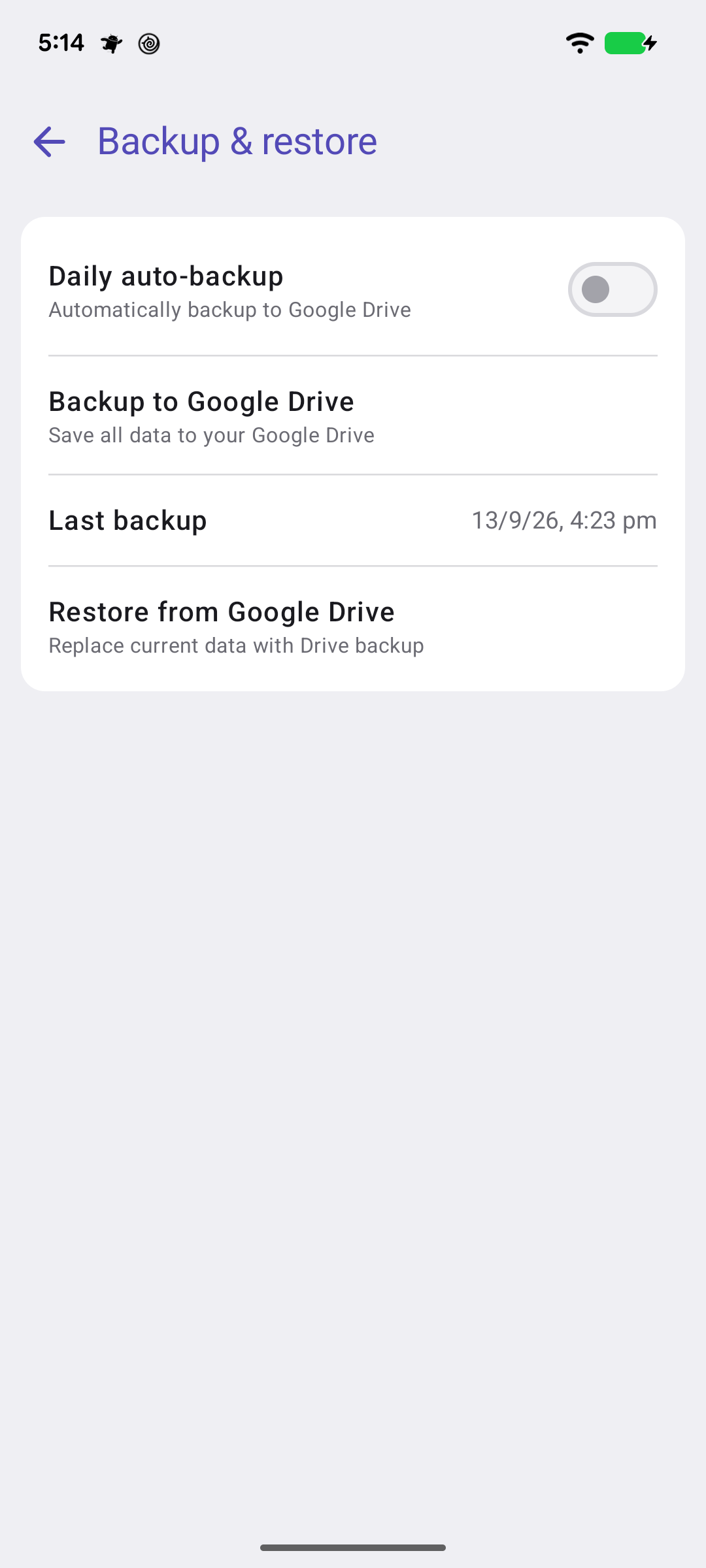
Settings → System → Backup & restore. Sign in to Google Drive, turn on Daily auto-backup, and Cardly copies everything — cards, pictures, gift card balances and your settings — into your Drive once a day. Backup to Google Drive does one now. Last backup shows when, and what was in it.
Daily, or now. Restore brings it all back on a new phone.
Below: restoring, and where the backup lives.
Going deeper
Restoring
Restore from Google Drive replaces everything in Cardly with the backup — it asks first, because anything added since that backup is lost. It is how a new phone gets your wallet: install Cardly, sign in to the same Google account, restore.
Where it lives
The backup is in your own Google Drive, in a folder only Cardly can see. Cardly has no server; nothing goes anywhere else.
If backups stop
If Google withdraws Cardly's access to Drive — it happens after a password change, or six months without use — the screen says so and offers Reconnect.
Schnellstart
Einstellungen → System → Backup & Wiederherstellung. Melde dich bei Google Drive an, schalte Tägliches Auto-Backup ein, und Cardly kopiert alles — Karten, Bilder, Geschenkkarten-Guthaben und deine Einstellungen — einmal täglich in dein Drive. Auf Google Drive sichern macht jetzt eine. Letztes Backup zeigt, wann und was enthalten war.
Täglich oder jetzt. Wiederherstellen bringt alles auf ein neues Telefon.
Weiter unten: Wiederherstellen, und wo die Sicherung liegt.
Mehr dazu
Wiederherstellen
Aus Google Drive wiederherstellen ersetzt alles in Cardly durch die Sicherung — es fragt vorher, denn alles seit dieser Sicherung Hinzugefügte geht verloren. So kommt dein Wallet auf ein neues Telefon: Cardly installieren, mit demselben Google-Konto anmelden, wiederherstellen.
Wo sie liegt
Die Sicherung liegt in deinem eigenen Google Drive, in einem Ordner, den nur Cardly sieht. Cardly hat keinen Server; nichts geht woandershin.
Wenn Sicherungen aufhören
Entzieht Google Cardly den Zugriff auf Drive — das passiert nach einer Passwortänderung oder sechs Monaten ohne Nutzung — sagt der Bildschirm das und bietet Neu verbinden an.