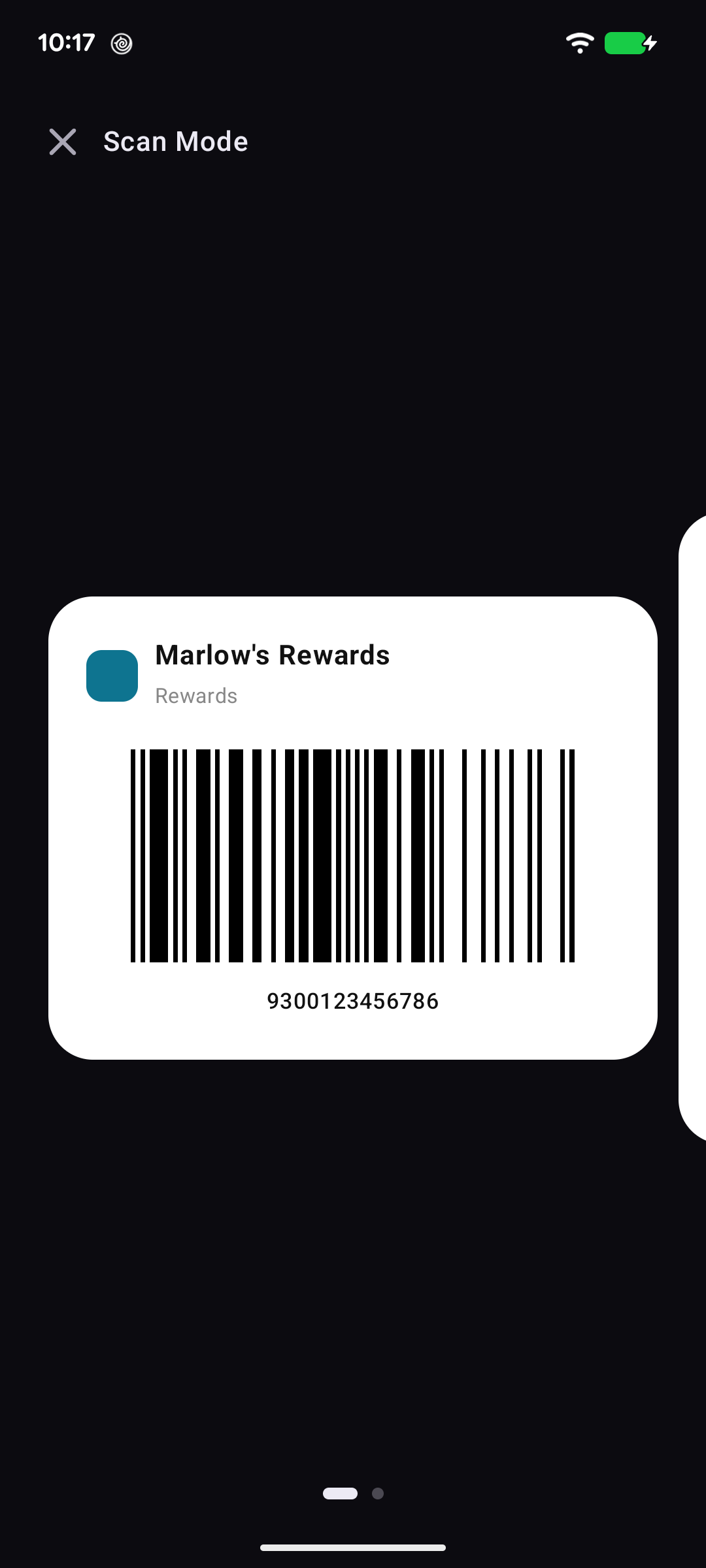
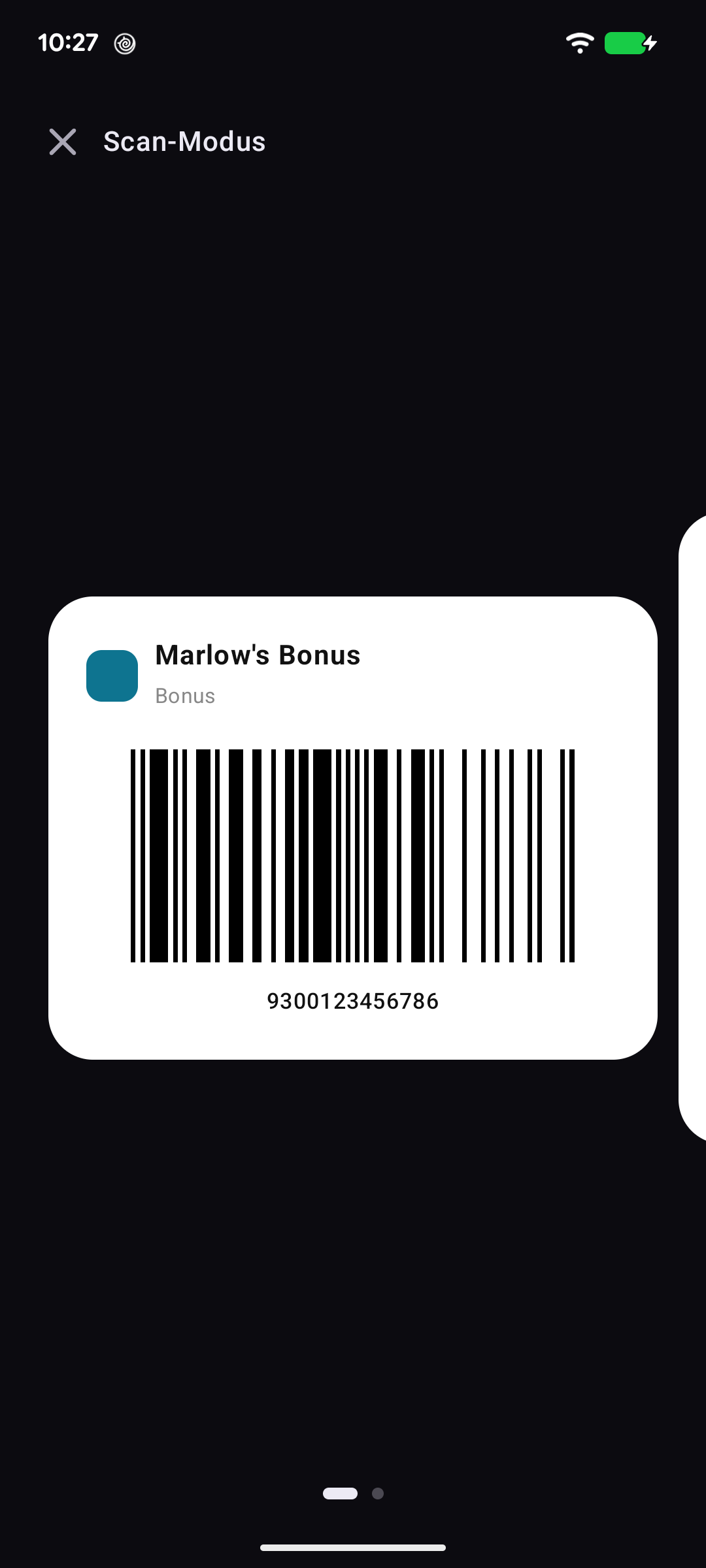
The barcode full-screen at full brightness, and a swipe between a rewards card and the gift cards you pay with.Der Barcode bildschirmfüllend bei voller Helligkeit, und ein Wisch zwischen Bonuskarte und den Geschenkkarten, mit denen du bezahlst.
Quick start
Scan Mode is the screen for the till: a white panel with the barcode as large as it goes, the screen turned up to full brightness, and the number underneath in case the scanner wants it read out. Tapping a card in the wallet opens it here. The X takes you back.
The barcode as big as it goes. The dots mean there is a gift card one swipe away.
Below: the swipe, and Scan Mode without picking a card.
Going deeper
Rewards card, then gift card
A rewards card with gift cards linked to it shows them one after the other: scan for points, swipe, pay with the gift card. The gift card's page carries its PIN and balance, so nothing else needs opening at the counter.
All your favourites
Opened from a widget or a Quick Settings tile with no card chosen, Scan Mode swipes through every favourite instead.
Opening the card screen instead
Turn off Open Scan Mode on tap in Settings → Wallet screen, and tapping a card opens the card screen. Open to scan at its foot still brings you here.
Schnellstart
Der Scan-Modus ist der Bildschirm für die Kasse: ein weißes Feld mit dem Barcode so groß wie möglich, die Helligkeit voll aufgedreht, und die Nummer darunter, falls sie vorgelesen werden soll. Ein Tipp auf eine Karte im Wallet öffnet sie hier. Das X führt zurück.
Der Barcode so groß wie möglich. Die Punkte bedeuten: eine Geschenkkarte ist einen Wisch entfernt.
Weiter unten: der Wisch, und Scan-Modus ohne ausgewählte Karte.
Mehr dazu
Bonuskarte, dann Geschenkkarte
Eine Bonuskarte mit verknüpften Geschenkkarten zeigt sie nacheinander: Punkte scannen, wischen, mit der Geschenkkarte bezahlen. Die Seite der Geschenkkarte trägt PIN und Guthaben, sodass an der Kasse nichts weiter geöffnet werden muss.
Alle Favoriten
Aus einem Widget oder einer Schnelleinstellungen-Kachel ohne gewählte Karte geöffnet, blättert der Scan-Modus stattdessen durch alle Favoriten.
Stattdessen den Kartenbildschirm öffnen
Schalte Scan-Modus beim Antippen öffnen unter Einstellungen → Wallet-Bildschirm aus, und ein Tipp auf eine Karte öffnet den Kartenbildschirm. Zum Scannen öffnen unten führt weiterhin hierher.