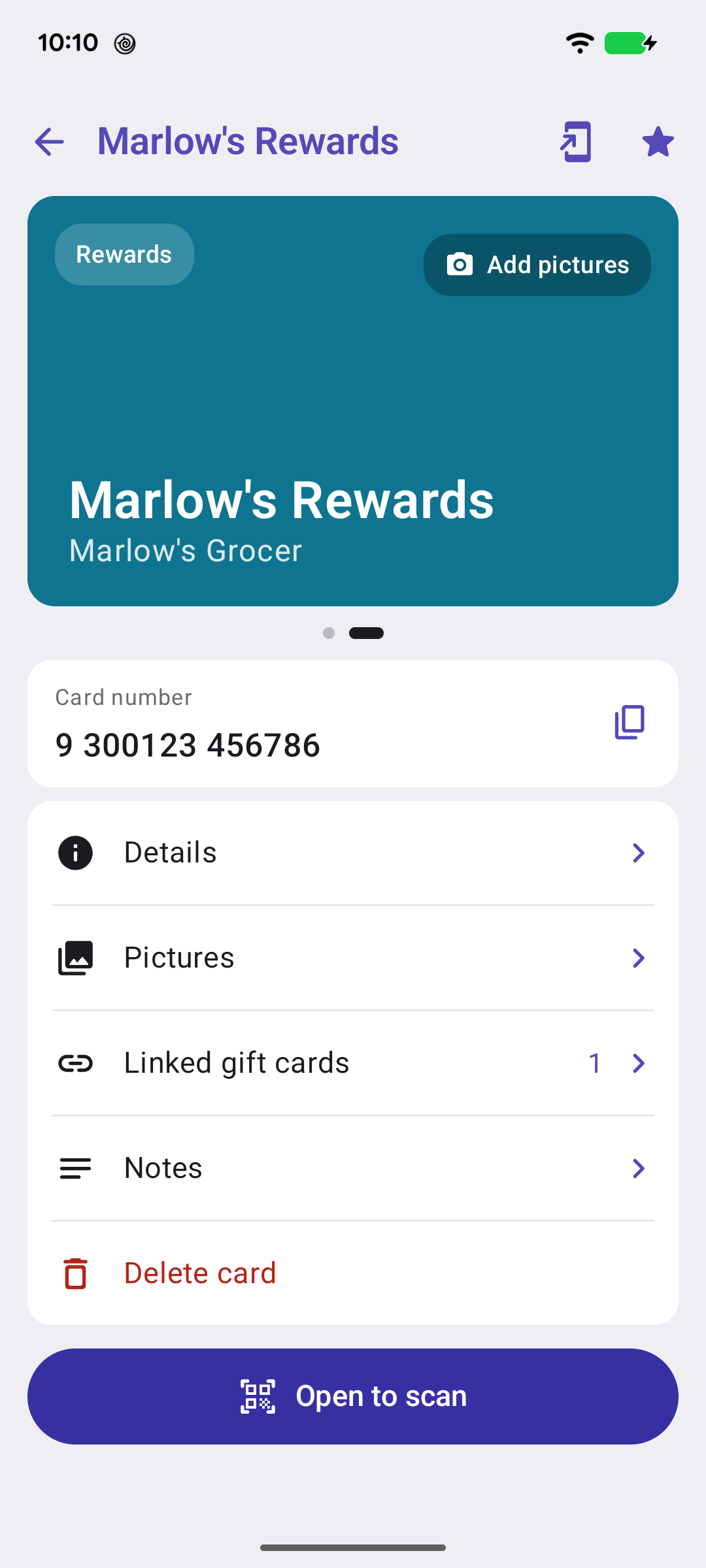
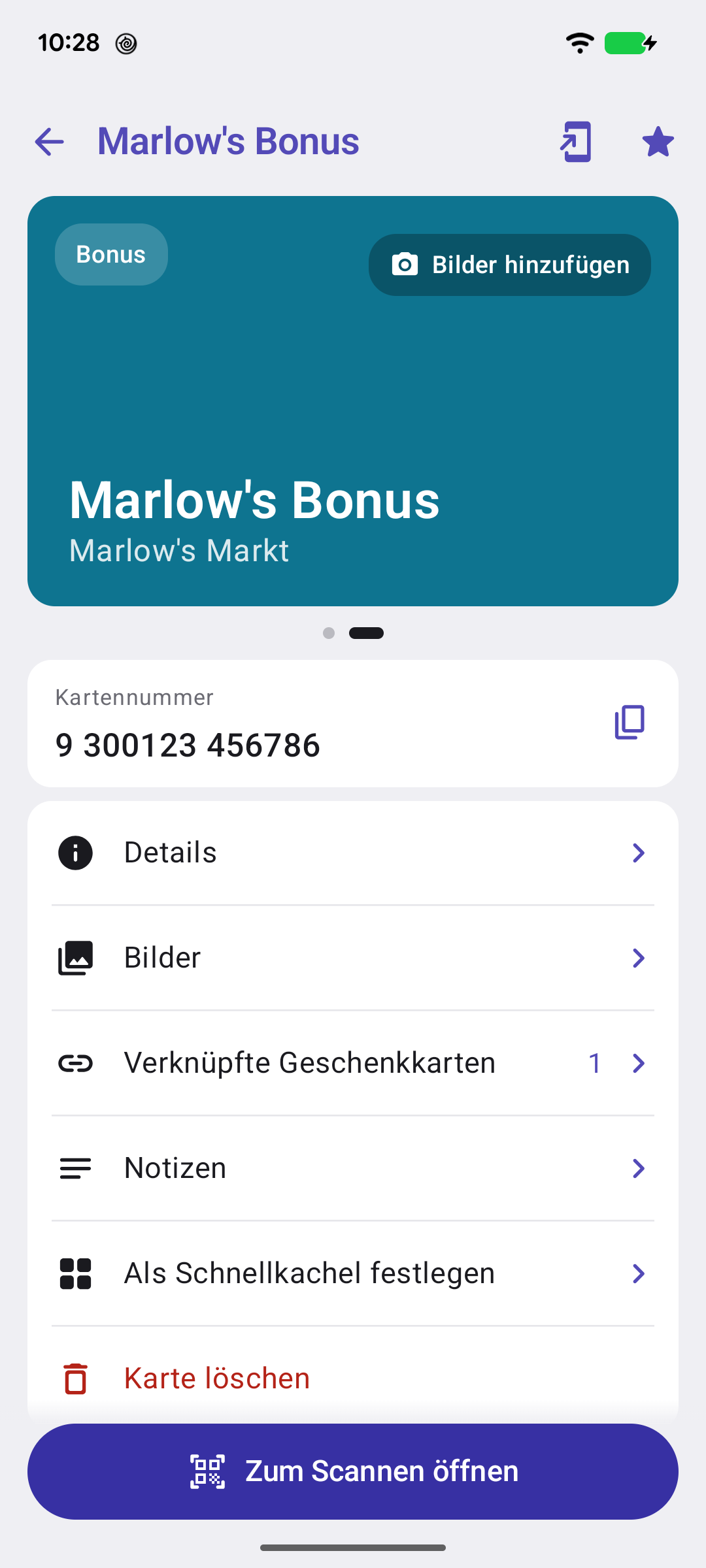
One card in full: barcode, pictures and colour tile in a pager at the top, the number and PIN, the balance, and everything you can do with it.Eine Karte im Ganzen: Barcode, Bilder und Farbkachel oben zum Durchblättern, Nummer und PIN, Guthaben und alles, was du mit ihr tun kannst.
Quick start
The card's name is the title. Under it is the card itself: the barcode, then each picture, then the colour tile, and you swipe between them — the dots show where you are. The card number follows, with a copy button; a gift card shows its PIN and its balance too.
Then the rows — Details, Pictures, Linked gift cards, Notes, Delete card — and Open to scan at the foot.
Barcode, pictures and tile up top; number, PIN and balance; then the rows.
Below: folding the pictures away, the top-bar icons, and Details.
Going deeper
Pictures folded away
Tap the barcode or a picture and the whole pager folds down to a strip in the card's colour, so the number and the rows come up the screen; tap the strip to open it again. Whether a card opens folded or open is a setting, separately for rewards cards and gift cards.
Which page it opens on is a setting too: Card screen opens on barcode, or on the first picture with the barcode one swipe back.
The top bar
The star makes the card a favourite, which puts it at the top of the wallet, in Scan Mode's swipe-through, and on the widgets. The shortcut icon adds the card to your phone's home screen — tap that and it opens straight in Scan Mode.
Details
Details shows everything the card holds, to read: type, name, store, number, what Scan Mode shows, the gift card's balance and expiry, and both colours. The pencil opens the form to change any of it. Tapping a colour — here, or the colour tile on the card screen — opens the form with that colour's picker already up.
Notes
With Premium, Notes keeps anything else about the card — a membership number, the store's opening hours. A card with a note shows it on a long press.
Schnellstart
Der Kartenname ist der Titel. Darunter die Karte selbst: der Barcode, dann jedes Bild, dann die Farbkachel — du wischst dazwischen, die Punkte zeigen, wo du bist. Es folgt die Kartennummer mit Kopiertaste; eine Geschenkkarte zeigt außerdem PIN und Guthaben.
Dann die Zeilen — Details, Bilder, Verknüpfte Geschenkkarten, Notizen, Karte löschen — und unten Zum Scannen öffnen.
Oben Barcode, Bilder und Kachel; Nummer, PIN und Guthaben; dann die Zeilen.
Weiter unten: Bilder einklappen, die Symbole in der Titelleiste und Details.
Mehr dazu
Bilder eingeklappt
Tippe auf den Barcode oder ein Bild, und der ganze Bereich klappt zu einem Streifen in der Kartenfarbe zusammen, sodass Nummer und Zeilen nach oben rücken; ein Tipp auf den Streifen öffnet ihn wieder. Ob eine Karte eingeklappt oder offen startet, ist eine Einstellung — getrennt für Bonus- und Geschenkkarten.
Auch die Startseite ist einstellbar: Kartenbildschirm öffnet mit Barcode, oder mit dem ersten Bild und dem Barcode einen Wisch zurück.
Die Titelleiste
Der Stern macht die Karte zum Favoriten — damit steht sie oben im Wallet, im Scan-Modus zum Durchwischen und auf den Widgets. Das Verknüpfungssymbol legt die Karte auf den Startbildschirm des Telefons; antippen öffnet sie direkt im Scan-Modus.
Details
Details zeigt alles, was die Karte enthält, zum Lesen: Typ, Name, Geschäft, Nummer, was der Scan-Modus zeigt, Guthaben und Ablaufdatum der Geschenkkarte und beide Farben. Der Stift öffnet das Formular zum Ändern. Ein Tipp auf eine Farbe — hier oder auf die Farbkachel am Kartenbildschirm — öffnet das Formular gleich mit der Farbauswahl.
Notizen
Mit Premium hält Notizen alles Weitere zur Karte fest — eine Mitgliedsnummer, die Öffnungszeiten des Geschäfts. Eine Karte mit Notiz zeigt sie bei langem Drücken.