Every setting, group by group: Biometric lock, Customise, Wallet screen, Card screen, Premium and System.Jede Einstellung, Gruppe für Gruppe: Biometrische Sperre, Anpassen, Wallet-Bildschirm, Kartenbildschirm, Premium und System.
Quick start
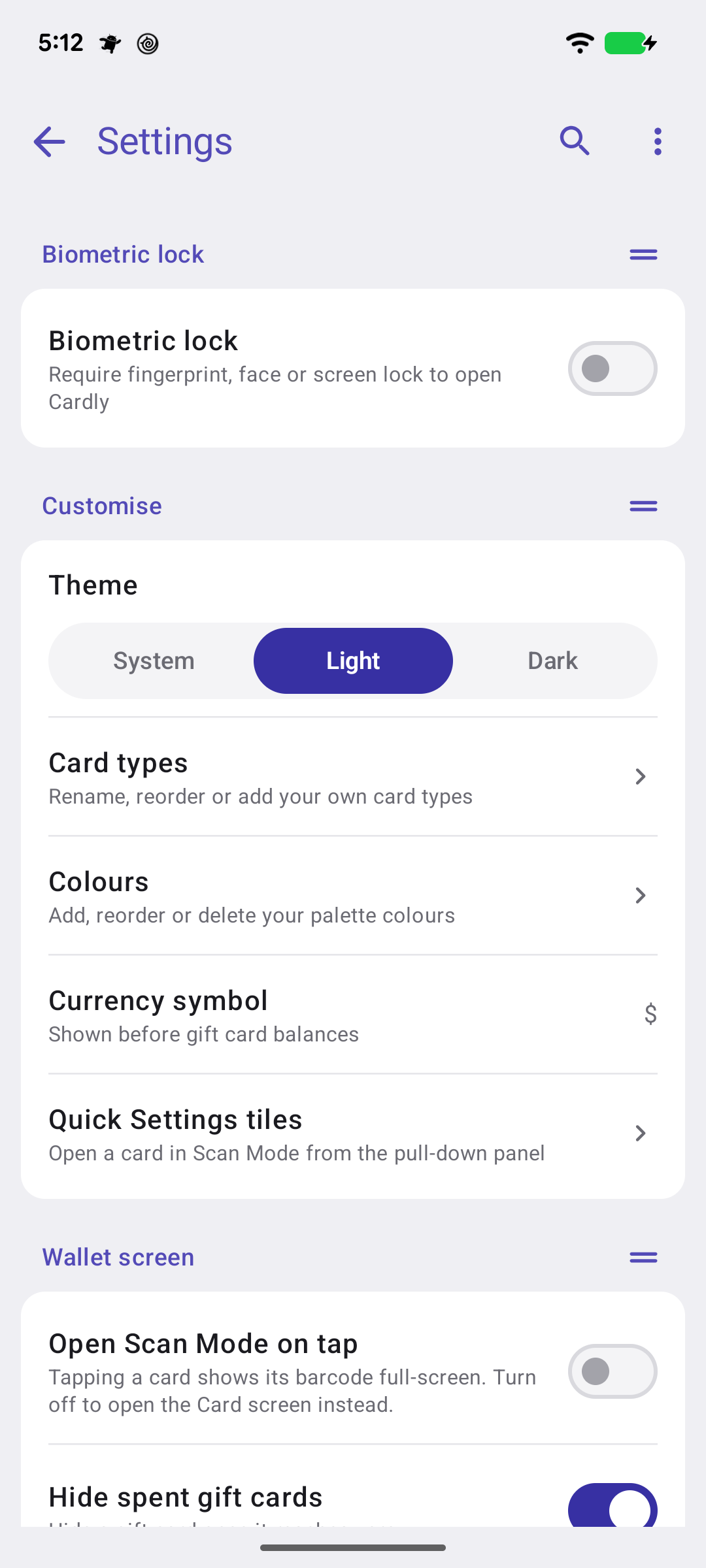
The gear at the top of the wallet opens Settings. Six groups, each a card of rows; the search icon finds any row by a word in its name or description, and highlights it in its group.
Six groups. The search icon finds any row by name.
Below: what every setting does, in the order the screen shows them.
Going deeper
Biometric lock
Biometric lock — Cardly asks for your fingerprint, face or screen lock before it opens, and again after thirty seconds in the background. Needs a screen lock set up on the phone. Premium.
Customise
Theme — System follows the phone's light or dark setting; Light and Dark fix it.
Card types — the Card types screen: rename, reorder, or add your own. The order here is the order of the wallet's sections.
Colours — your palette: add, reorder or delete the colours the card forms offer. Every colour has a name, never a number.
Currency symbol — what gift card balances show, and whether it goes before the amount ($92.50) or after (92,50 €).
Quick Settings tiles — four slots, one card each, for the phone's pull-down panel. Premium.
Wallet screen
Open Scan Mode on tap — on, tapping a card shows its barcode full-screen; off, it opens the card screen, with Open to scan at the foot.
Hide spent gift cards — a gift card is hidden the moment its balance reaches zero. It stays in Cardly; the eye brings it back.
Card gradients — cards with no picture shade from light at the top to their own colour at the foot, instead of flat colour.
Card screen
Card screen opens on barcode — on, a card opens on its barcode with the pictures one swipe away; off, on the first picture with the barcode one swipe back.
Show pictures on rewards cards — off, a rewards card opens with its pictures folded to a strip; tap the strip to open them.
Show pictures on gift cards — the same, for gift cards.
Premium
Cardly Premium — opens the Premium screen: what it unlocks and the one-off price, or "Purchased — thank you" once you have it.
System
Backup & restore — the daily Google Drive backup, a backup now, and restore. Premium.
Help & support — this help and the screen guide, Share app, and more apps by Woohoo.
About — the version (tap it for what's new), the privacy policy and terms of use, and Delete all data, which removes every card from this phone after asking.
Your order
With Premium, drag handles appear on the group headers, so the settings you use sit at the top. The menu at the top right has Reset order and hides or shows the handles.
Schnellstart
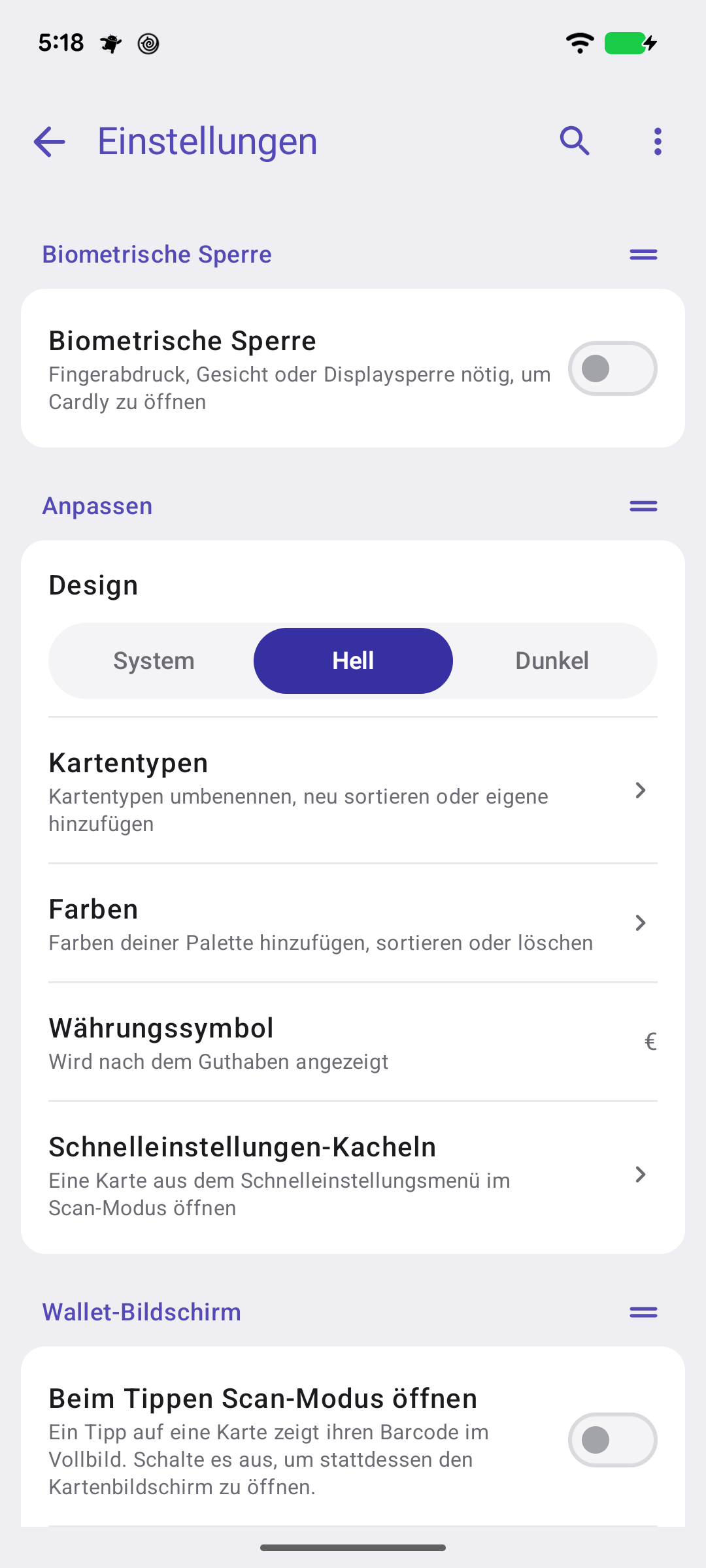
Das Zahnrad oben im Wallet öffnet die Einstellungen. Sechs Gruppen, jede eine Karte mit Zeilen; das Suchsymbol findet jede Zeile über ein Wort in Name oder Beschreibung und hebt sie in ihrer Gruppe hervor.
Sechs Gruppen. Das Suchsymbol findet jede Zeile nach Namen.
Weiter unten: was jede Einstellung tut, in der Reihenfolge des Bildschirms.
Mehr dazu
Biometrische Sperre
Biometrische Sperre — Cardly verlangt Fingerabdruck, Gesicht oder Displaysperre, bevor es sich öffnet, und erneut nach dreißig Sekunden im Hintergrund. Braucht eine eingerichtete Displaysperre. Premium.
Anpassen
Design — System folgt der Hell-/Dunkel-Einstellung des Telefons; Hell und Dunkel legen es fest.
Kartentypen — der Bildschirm Kartentypen: umbenennen, neu sortieren oder eigene hinzufügen. Die Reihenfolge hier ist die der Wallet-Abschnitte.
Farben — deine Palette: die Farben der Kartenformulare hinzufügen, sortieren oder löschen. Jede Farbe hat einen Namen, nie eine Zahl.
Währungssymbol — was Geschenkkarten-Guthaben zeigen, und ob es vor dem Betrag steht ($92.50) oder danach (92,50 €).
Schnelleinstellungen-Kacheln — vier Plätze, je eine Karte, für das Ausklappmenü des Telefons. Premium.
Wallet-Bildschirm
Beim Tippen Scan-Modus öffnen — an: ein Tipp auf eine Karte zeigt ihren Barcode im Vollbild; aus: der Kartenbildschirm öffnet sich, mit Zum Scannen öffnen unten.
Aufgebrauchte Geschenkkarten ausblenden — eine Geschenkkarte wird ausgeblendet, sobald ihr Guthaben null erreicht. Sie bleibt in Cardly; das Auge holt sie zurück.
Kartenverläufe — Karten ohne Bild verlaufen von hell oben zu ihrer eigenen Farbe unten, statt in flacher Farbe.
Kartenbildschirm
Kartenbildschirm öffnet mit Barcode — an: eine Karte öffnet mit dem Barcode, die Bilder einen Wisch entfernt; aus: mit dem ersten Bild, der Barcode einen Wisch zurück.
Bilder bei Bonuskarten anzeigen — aus: eine Bonuskarte öffnet mit eingeklappten Bildern als Streifen; ein Tipp auf den Streifen öffnet sie.
Bilder bei Geschenkkarten anzeigen — dasselbe für Geschenkkarten.
Premium
Cardly Premium — öffnet den Premium-Bildschirm: was es freischaltet und den Einmalpreis, oder „Gekauft – vielen Dank“, sobald du es hast.
System
Backup & Wiederherstellung — das tägliche Google-Drive-Backup, ein Backup jetzt und die Wiederherstellung. Premium.
Hilfe & Support — diese Hilfe und die Bildschirm-Hilfe, App teilen und mehr Apps von Woohoo.
Über — die Version (antippen für Neuigkeiten), Datenschutzerklärung und Nutzungsbedingungen, und Alle Daten löschen, das nach Rückfrage jede Karte von diesem Telefon entfernt.
Deine Reihenfolge
Mit Premium erscheinen Ziehpunkte an den Gruppenüberschriften, sodass die Einstellungen, die du nutzt, oben stehen. Das Menü oben rechts hat Reihenfolge zurücksetzen und blendet die Ziehpunkte aus oder ein.