Quick Settings tiles and widgetsSchnelleinstellungen-Kacheln und Widgets
Your cards without opening the app: four tiles in the pull-down panel, and five widgets for the home screen. Premium.Deine Karten, ohne die App zu öffnen: vier Kacheln im Ausklappmenü und fünf Widgets für den Startbildschirm. Premium.
Quick start
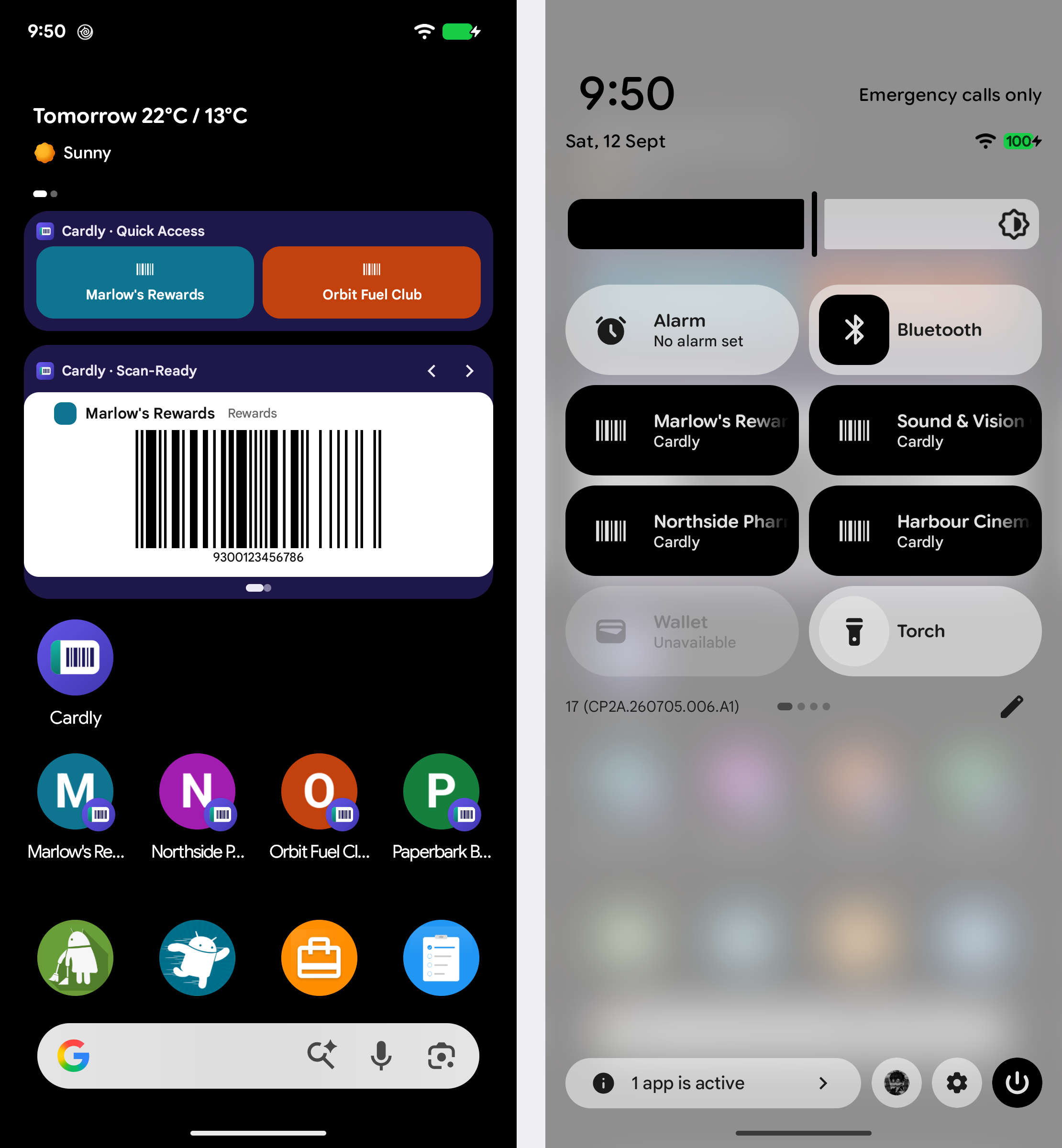
A Quick Settings tile puts one card in the panel you get by swiping down from the top of the phone. Tap it and the card opens in Scan Mode. To set one up:
In Cardly, open Settings → Customise → Quick Settings tiles.
Tap Tile 1 and choose the card for it. There are four tiles.
Swipe down from the top of the phone, all the way, and tap the pencil to edit the panel.
Find Cardly card 1 in the list of tiles and drag it up into the panel. If your phone offers a wide tile, pick it — the card's name fits.
A widget puts a card, or your favourites, on the home screen itself. To add one:
Touch and hold an empty part of the home screen and choose Widgets.
Find Cardly and pick a widget — the five are listed below.
Drag it onto the home screen. Cardly Card Scan asks which card as you place it; the others fill from your favourites.
Widgets on the home screen; tiles in the pull-down panel.
Below: the five widgets, and how they keep up with your wallet.
Going deeper
The widgets
Cardly Card — your top favourite, one tap from scannable.
Cardly Favourites — your top four in a grid.
Cardly Quick Access — a slim strip of favourites.
Cardly Scan-Ready — a live barcode on the home screen, with arrows to step through your favourites.
Cardly Card Scan — one card you choose when you place it, barcode ready.
They follow the wallet
Star a card and it appears on the favourites widgets; hide one and it goes. A tile keeps its card until you change it in Settings. Both are Premium — without it, a tile or widget says so and opens the Premium screen.
Schnellstart
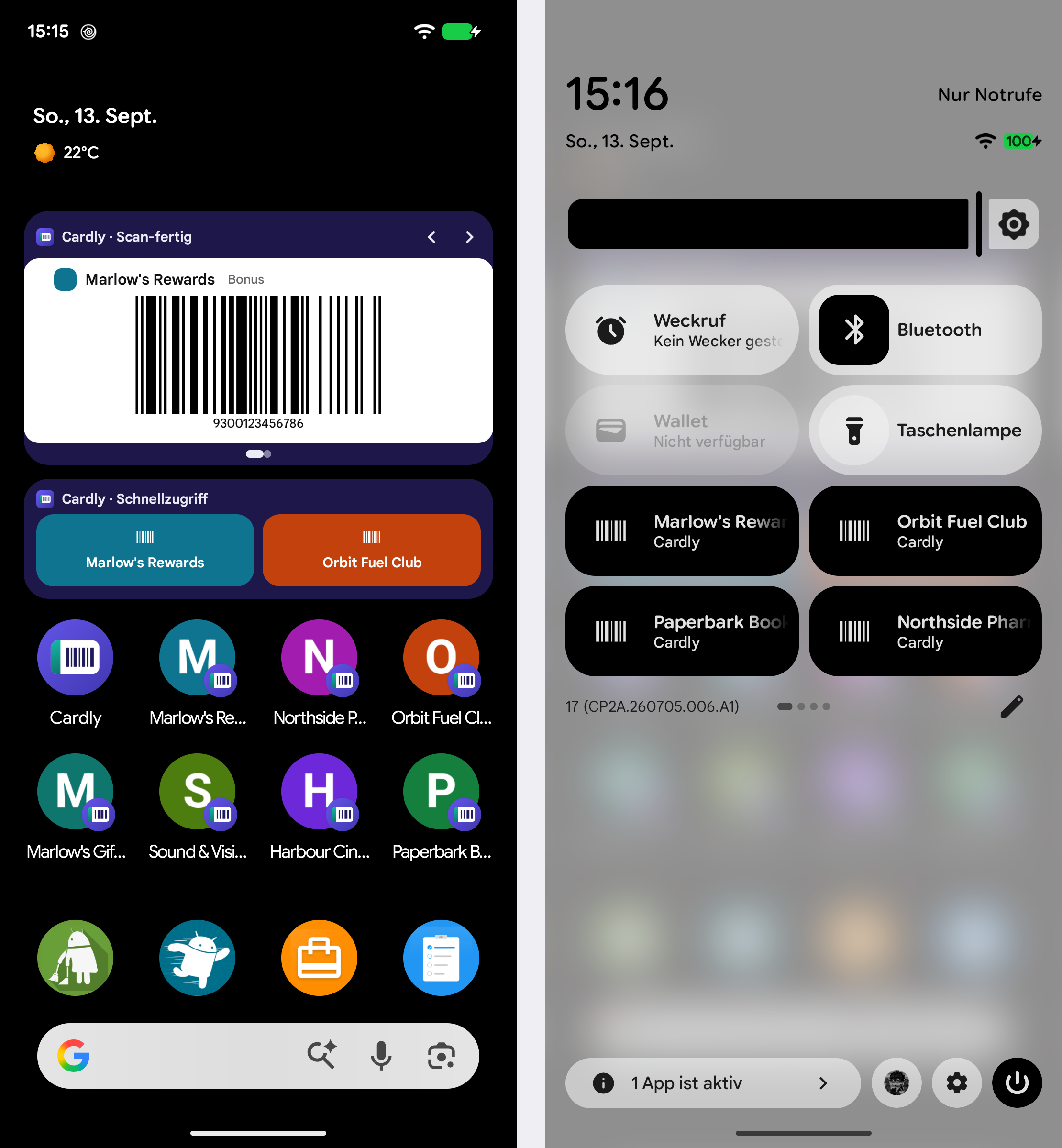
Eine Schnelleinstellungen-Kachel legt eine Karte in das Menü, das du durch Wischen vom oberen Rand des Telefons öffnest. Antippen, und die Karte öffnet sich im Scan-Modus. So richtest du eine ein:
Öffne in Cardly Einstellungen → Anpassen → Schnelleinstellungen-Kacheln.
Tippe auf Kachel 1 und wähle ihre Karte. Es gibt vier Kacheln.
Wische vom oberen Rand des Telefons ganz nach unten und tippe auf den Stift, um das Menü zu bearbeiten.
Suche Cardly Karte 1 in der Kachelliste und ziehe sie nach oben ins Menü. Bietet dein Telefon eine breite Kachel an, nimm sie — der Kartenname hat dann Platz.
Ein Widget legt eine Karte oder deine Favoriten direkt auf den Startbildschirm. So fügst du eines hinzu:
Halte eine freie Stelle des Startbildschirms gedrückt und wähle Widgets.
Suche Cardly und wähle ein Widget — die fünf stehen unten.
Ziehe es auf den Startbildschirm. Cardly Kartenscan fragt beim Platzieren nach der Karte; die anderen füllen sich aus deinen Favoriten.
Widgets auf dem Startbildschirm; Kacheln im Ausklappmenü.
Weiter unten: die fünf Widgets, und wie sie mit dem Wallet Schritt halten.
Mehr dazu
Die Widgets
Cardly Karte — dein oberster Favorit, ein Tipp vom Scannen entfernt.
Cardly Favoriten — deine obersten vier im Raster.
Cardly Schnellzugriff — ein schmaler Streifen mit Favoriten.
Cardly Scan-fertig — ein Barcode direkt auf dem Startbildschirm, mit Pfeilen durch die Favoriten.
Cardly Kartenscan — eine Karte, die du beim Platzieren wählst, Barcode bereit.
Sie folgen dem Wallet
Markierst du eine Karte als Favorit, erscheint sie auf den Favoriten-Widgets; blendest du eine aus, verschwindet sie. Eine Kachel behält ihre Karte, bis du sie in den Einstellungen änderst. Beides ist Premium — ohne sagt eine Kachel oder ein Widget das und öffnet den Premium-Bildschirm.